Today, I feel happy because today I did a successful and a complete SharePoint 2010 Farm Restore. And that is on a different server machine and on a different SQL Server from where the backup was taken. I have restored Site Collection backups couple of times before, but not a full farm.
When you are restoring a SharePoint farm in a separate server, there will be some major points that you might want to consider. Your server name might be different. Your domain might be different. And most importantly, when your SQL server which you are going to do the restore on is different from the SQL server where your backup was taken, you will have to do the restore process in a very careful manner.
Since I don't trust this method of doing the restore using SharePoint 2010 Central Administration, I have used SharePoint 2010 PowerShell. Using commands we can fully customize the restore options and I should tell you that it saved my day.
Happy Coding.
Regards,
Jaliya
Friday, October 21, 2011


Tuesday, September 27, 2011
out and ref Parameters in C#
Today I am going to write about two nice modifiers that we can use when defining parameters in a method. While parameters are very simple and straight forward to use, there are tricks which can make them a lot more powerful than it seems.
using out modifier
static void Main(string[] args)
{
int i; //no need to assign a value to i
Method(out i);
Console.WriteLine(i); //i is 10
Console.ReadLine();
}
static void Method(out int x)
{
x = 10; //must assign a value
}
using ref modifier
static void Main(string[] args)
{
int i = 5; //must initialize the variable
Method(ref i);
Console.WriteLine(i); //i is 10
Console.ReadLine();
}
static void Method(ref int x)
{
x = 10; //can change the value, but not a must
}
As you can see, when I am using out modifier I did not set a value to the variable before passing it. But in the method I have set a value and it is a must. When using ref modifier, I have initialized the variable and then passed it. Without initializing the variable I can't use ref and in the method, it's up to you to change the value or not. Hope you all got a good understanding in out and ref.
Feel free to give me your feedback.
Happy Coding.
Regards,
Jaliya
C#, as well as other languages have two types of parameters. One is passing parameters 'by value' and the other is 'by reference'. The default is 'by value'. If we pass a parameter 'by value', that means we are passing a variable to a method and actually we are sending a copy of a variable instead of a reference to it. What happens here is, all the changes we do to that variable in our method, will not affect the original variable which we passed as a parameter.
If you want to pass parameters 'by reference', that's where out and ref modifiers comes in. With the help of out and the ref keyword, we can change this behavior, so we pass along a reference to the object instead of its value.
Difference between out and ref
Actually these two modifiers pretty much acts like the same. They both ensure that the parameter is passed 'by reference' instead of 'by value', but they have one significant difference. That is when we are using out parameter, before passing the variable into the method we don't have to initialize the variable. But in the method before leaving the method, we should assign a value for that. If not we will get a compile error saying "The out parameter 'x' must be assigned to before control leaves the current method".
When we are using ref parameter, before we pass the variable into the method, we must initialize it. if not we will get a compile error saying "Use of unassigned local variable".
I am going to write down a simple code, so you will be able to get a good understanding about how to use these two modifiers and their difference.
using out modifier
static void Main(string[] args)
{
int i; //no need to assign a value to i
Method(out i);
Console.WriteLine(i); //i is 10
Console.ReadLine();
}
static void Method(out int x)
{
x = 10; //must assign a value
}
using ref modifier
static void Main(string[] args)
{
int i = 5; //must initialize the variable
Method(ref i);
Console.WriteLine(i); //i is 10
Console.ReadLine();
}
static void Method(ref int x)
{
x = 10; //can change the value, but not a must
}
As you can see, when I am using out modifier I did not set a value to the variable before passing it. But in the method I have set a value and it is a must. When using ref modifier, I have initialized the variable and then passed it. Without initializing the variable I can't use ref and in the method, it's up to you to change the value or not. Hope you all got a good understanding in out and ref.
Feel free to give me your feedback.
Happy Coding.
Regards,
Jaliya
Friday, September 23, 2011
Named and Optional Arguments for Methods in C# 4.0
With C# 4.0, Microsoft has introduced a nice concept of this Named and Optional arguments for methods. So today I am going to write about how great this concept is.
I will start by writing down a very simple method. This method GetSum() will return the sum of two supplied values.
static void Main(string[] args)
{
int sum = GetSum(5, 10); //5 and 10 are arguments
Console.WriteLine(sum);
Console.ReadLine();
}
static int GetSum(int i, int j) //i and j are parameters
{
return i + j;
}
Please note the difference between arguments and parameters. Arguments are actual value you pass to the method when calling the method. Parameters are variables in the method declaration.
Named arguments enable you to specify an argument for a particular parameter by associating the argument with the parameter's name rather than with the parameter's position in the parameter list. Optional arguments enable you to omit arguments for some parameters. Both techniques can be used with methods, indexers, constructors, and delegates.
The general thing is when we are passing values to a method, they should be in the order same as in the parameter list. If I take above example, the values 5 and 10 are for i and j respectively. But when you use named and optional arguments, the arguments are evaluated in the order in which they appear in the argument list, not in the parameter list.
Named Arguments
Let's say in your method you are having 3 parameters. First one is int, second one is string and the third is again int. So when I am calling the method I will have to pass an integer first,string for next and again integer for the third. For that I should keep the order of parameter list in mind and of course it is a trouble. So with Named arguments, it will free you from the need of remembering or looking up the order of parameters in the parameter lists of called methods. The parameter for each argument can be specified by parameter name. I will modify the above example with Named arguments.
static void Main(string[] args)
{
int sum = 0;
//without using named arguments
sum = GetSum(5, 10);
//with named arguments
//named arguments can be supplied for the parameters in either order
sum = GetSum(i: 5, j: 10);
sum = GetSum(j: 5, i: 10);
//named arguments can follow positional arguments
sum = GetSum(5, j: 10);
//named argument 'i' specifies a parameter for which a positional argument has already been given
//so the following statement causes a compiler error
num = GetSum(5, i: 10);
//positional arguments cannot follow named arguments
//so the following statement causes a compiler error
sum = GetSum(i: 5, 10);
}
static int GetSum(int i, int j)
{
return i + j;
}
Optional Arguments
The definition of a method, constructor, indexer, or delegate can specify that its parameters are required or that they are optional. Any call must provide arguments for all required parameters, but can omit arguments for optional parameters.
Each optional parameter has a default value as part of its definition. If no argument is sent for that parameter, the default value is used.
When defining optional parameters you should keep this in your mind. Optional parameters are defined at the end of the parameter list, after any required parameters.
I will modify the first example for you to get a good understanding about this concept.
static void Main(string[] args)
{
int sum = 0;
sum = GetSum(5); //sum is 30
sum = GetSum(5,20,30); //sum is 55
sum = GetSum(5, 20); //required_i=5, optional_j=20, optional_k=15 and sum is 40
//the following call causes a compiler error
//because an argument is provided for the third parameter but not for the second
sum = GetSum(3, ,4);
//however, if you know the name of the third parameter, you can use a named argument to give a value for third
sum = GetSum(5, optional_k: 20); //required_i=5, optional_j=10, optional_k=20 and sum is 35
//the following call causes a compiler error
//because the required marametr is missing
sum = GetSum(optional_j: 20, optional_k: 30);
}
static int GetSum(int required_i, int optional_j = 10, int optional_k = 15)
{
return required_i + optional_j + optional_k;
}
when writing your code in Visual Studio, you will notice that IntelliSense uses brackets to indicate optional parameters, as shown in the following image.
Named and optional arguments, along with support for dynamic objects and other enhancements, greatly improve interoperability with COM APIs, such as Office Automation APIs. For an example, the AutoFormat method in the Microsoft Office Excel Range interface has seven parameters, all of which are optional. So it's up to you to provide optional values, if you want to change the default values.
Feel free to give me you feedback.
Happy Coding.
Regards,
Jaliya
I will start by writing down a very simple method. This method GetSum() will return the sum of two supplied values.
static void Main(string[] args)
{
int sum = GetSum(5, 10); //5 and 10 are arguments
Console.WriteLine(sum);
Console.ReadLine();
}
static int GetSum(int i, int j) //i and j are parameters
{
return i + j;
}
Please note the difference between arguments and parameters. Arguments are actual value you pass to the method when calling the method. Parameters are variables in the method declaration.
Named arguments enable you to specify an argument for a particular parameter by associating the argument with the parameter's name rather than with the parameter's position in the parameter list. Optional arguments enable you to omit arguments for some parameters. Both techniques can be used with methods, indexers, constructors, and delegates.
The general thing is when we are passing values to a method, they should be in the order same as in the parameter list. If I take above example, the values 5 and 10 are for i and j respectively. But when you use named and optional arguments, the arguments are evaluated in the order in which they appear in the argument list, not in the parameter list.
Named Arguments
Let's say in your method you are having 3 parameters. First one is int, second one is string and the third is again int. So when I am calling the method I will have to pass an integer first,string for next and again integer for the third. For that I should keep the order of parameter list in mind and of course it is a trouble. So with Named arguments, it will free you from the need of remembering or looking up the order of parameters in the parameter lists of called methods. The parameter for each argument can be specified by parameter name. I will modify the above example with Named arguments.
static void Main(string[] args)
{
int sum = 0;
//without using named arguments
sum = GetSum(5, 10);
//with named arguments
//named arguments can be supplied for the parameters in either order
sum = GetSum(i: 5, j: 10);
sum = GetSum(j: 5, i: 10);
//named arguments can follow positional arguments
sum = GetSum(5, j: 10);
//named argument 'i' specifies a parameter for which a positional argument has already been given
//so the following statement causes a compiler error
num = GetSum(5, i: 10);
//positional arguments cannot follow named arguments
//so the following statement causes a compiler error
sum = GetSum(i: 5, 10);
}
static int GetSum(int i, int j)
{
return i + j;
}
Optional Arguments
The definition of a method, constructor, indexer, or delegate can specify that its parameters are required or that they are optional. Any call must provide arguments for all required parameters, but can omit arguments for optional parameters.
Each optional parameter has a default value as part of its definition. If no argument is sent for that parameter, the default value is used.
When defining optional parameters you should keep this in your mind. Optional parameters are defined at the end of the parameter list, after any required parameters.
I will modify the first example for you to get a good understanding about this concept.
static void Main(string[] args)
{
int sum = 0;
sum = GetSum(5); //sum is 30
sum = GetSum(5,20,30); //sum is 55
sum = GetSum(5, 20); //required_i=5, optional_j=20, optional_k=15 and sum is 40
//the following call causes a compiler error
//because an argument is provided for the third parameter but not for the second
sum = GetSum(3, ,4);
//however, if you know the name of the third parameter, you can use a named argument to give a value for third
sum = GetSum(5, optional_k: 20); //required_i=5, optional_j=10, optional_k=20 and sum is 35
//the following call causes a compiler error
//because the required marametr is missing
sum = GetSum(optional_j: 20, optional_k: 30);
}
static int GetSum(int required_i, int optional_j = 10, int optional_k = 15)
{
return required_i + optional_j + optional_k;
}
when writing your code in Visual Studio, you will notice that IntelliSense uses brackets to indicate optional parameters, as shown in the following image.
 |
| IntelliSense |
Named and optional arguments, along with support for dynamic objects and other enhancements, greatly improve interoperability with COM APIs, such as Office Automation APIs. For an example, the AutoFormat method in the Microsoft Office Excel Range interface has seven parameters, all of which are optional. So it's up to you to provide optional values, if you want to change the default values.
Feel free to give me you feedback.
Happy Coding.
Regards,
Jaliya
Friday, September 9, 2011
Windows Presentation Foundation(WPF) vs Silverlight
Yesterday I did a session about Microsoft Windows Presentation Foundation in Sri Lanka .NET Forum User Group meeting and it was a great experience. Audience was really friendly and there was some nice questions from the audience. One of the interesting questions is that comparison of WPF vs Silverlight. So today I am going to write a post about Windows Presentation Foundation and Silverlight. Please note that I am getting information for my post from the msdn.
Windows Presentation Foundation(WPF)
Windows Presentation Foundation (WPF) is a next-generation presentation system for building Windows client applications with visually stunning user experiences. With WPF, you can create a wide range of both standalone and browser-hosted applications. The core of WPF is a resolution-independent and vector-based rendering engine that is built to take advantage of modern graphics hardware. WPF extends the core with a comprehensive set of application-development features that include Extensible Application Markup Language (XAML), controls, data binding, layout, 2-D and 3-D graphics, animation, styles, templates, documents, media, text, and typography. WPF is included in the Microsoft .NET Framework, so you can build applications that incorporate other elements of the .NET Framework class library.
Here is a image of sample desktop application created using WPF.
For more information on Windows Presentation Foundation, please visit the following link.
Windows Presentation Foundation(WPF)
Windows Presentation Foundation (WPF) is a next-generation presentation system for building Windows client applications with visually stunning user experiences. With WPF, you can create a wide range of both standalone and browser-hosted applications. The core of WPF is a resolution-independent and vector-based rendering engine that is built to take advantage of modern graphics hardware. WPF extends the core with a comprehensive set of application-development features that include Extensible Application Markup Language (XAML), controls, data binding, layout, 2-D and 3-D graphics, animation, styles, templates, documents, media, text, and typography. WPF is included in the Microsoft .NET Framework, so you can build applications that incorporate other elements of the .NET Framework class library.
Here is a image of sample desktop application created using WPF.
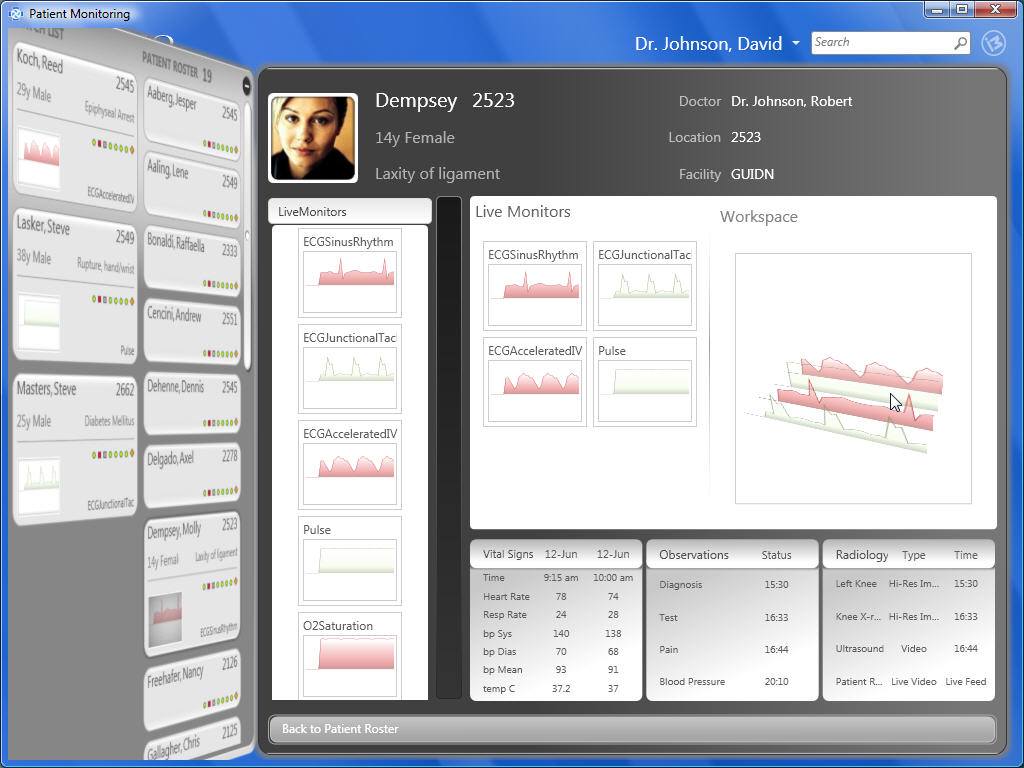 |
| Sample desktop application created using WPF |
Windows Presentation Foundation
Silverlight
Microsoft Silverlight is a cross-browser, cross-platform implementation of the .NET Framework for building and delivering the next generation of media experiences and rich interactive applications (RIA) for the Web. You can also create Silverlight applications that run outside of the browser on your desktop. Finally, you use the Silverlight framework to create applications for Windows Phone. Silverlight uses the Extensible Application Markup Language (XAML) to ease UI development (e.g. controls, animations, graphics, layout, etc.) while using managed code or dynamic languages for application logic.
What Features are in Silverlight?
WPF compatibility with Silverlight 4
As I told you before Silverlight offers a subset of the functionality provided by Windows Presentation Foundation (WPF) and enables you to build rich Internet applications that are easy to deploy and quick to install. An additional goal for Silverlight is to enable you to transfer your .NET Framework development experience to Silverlight, and vice versa. You should also be able to port Silverlight applications to the desktop, mainly reusing the XAML.
Since there is a lot of things about this in the msdn site, I will just provide the link. So you all can go through it.
WPF compatibility with Silverlight 4
Hope you all got a good understanding about Windows Presentation Foundation and Silverlight. Please feel free to give me your feedback.
Happy Coding.
Regards,
Jaliya
Silverlight
Microsoft Silverlight is a cross-browser, cross-platform implementation of the .NET Framework for building and delivering the next generation of media experiences and rich interactive applications (RIA) for the Web. You can also create Silverlight applications that run outside of the browser on your desktop. Finally, you use the Silverlight framework to create applications for Windows Phone. Silverlight uses the Extensible Application Markup Language (XAML) to ease UI development (e.g. controls, animations, graphics, layout, etc.) while using managed code or dynamic languages for application logic.
What Features are in Silverlight?
Silverlight combines multiple technologies into a single development platform that enables you to select the right tools and the right programming language for your needs. Silverlight offers the following features,
- WPF and XAML. Silverlight includes a subset of the Windows Presentation Foundation (WPF) technology, which greatly extends the elements in the browser for creating UI. Silverlight lets you create immersive graphics, animation, media, and other rich client features, extending browser-based UI beyond what is available with HTML alone. XAML provides a declarative markup syntax for creating elements.
- Extensions to JavaScript. Silverlight provides extensions to the universal browser scripting language that provide control over the browser UI, including the ability to work with WPF elements.
- Cross-browser, cross-platform support. Silverlight runs the same on all popular browsers (and on popular platforms). You can design and develop your application without having to worry about which browser or platform your users have.
- Access to the .NET Framework programming model. You can create Silverlight applications using dynamic languages such as IronPython as well as languages such as C# and Visual Basic.
- Tools Support. You can use development tools, such as Visual Studio and Expression Blend, to quickly create Silverlight applications.
For more information on Silverlight, please visit the following link.
WPF compatibility with Silverlight 4
As I told you before Silverlight offers a subset of the functionality provided by Windows Presentation Foundation (WPF) and enables you to build rich Internet applications that are easy to deploy and quick to install. An additional goal for Silverlight is to enable you to transfer your .NET Framework development experience to Silverlight, and vice versa. You should also be able to port Silverlight applications to the desktop, mainly reusing the XAML.
Since there is a lot of things about this in the msdn site, I will just provide the link. So you all can go through it.
WPF compatibility with Silverlight 4
Hope you all got a good understanding about Windows Presentation Foundation and Silverlight. Please feel free to give me your feedback.
Happy Coding.
Regards,
Jaliya
Wednesday, September 7, 2011
What is Web 1.0, Web 2.0 and Web 3.0
Today after sometime of silence, I am going to write about these three categories in Web applications. Actually I happened to know about these categories today and thought it's better if write a post about it. So I will start with Web 1.0.
Web 1.0 - Websites, E-mail Newsletters
It's hard to define Web 1.0 for several reasons. So I will put it this way. What Web 1.0 really is, it's everything in between from the day World Wide Web has introduced and the day Web 2.0 has introduced. So keeping that in mind, Web 1.0 category web applications contains following features.
Web 1.0 category sites basically contains information that user's might find useful, but there's no reason for a visitor to return to the site later. An example might be a personal Web page that gives information about the site's owner, but never changes. And visitors can only visit these sites, they can't contribute to these sites. Because of this, these kind of sites are Static and they are not Interactive to the visitor which will make the site a Passive, One-way and a Closed site.
Web 2.0 - Blogs, Wikis, and Social Networking sites
At its core, Web 2.0 is the beginning of two-way communication in Web Applications. Web 2.0 sites invite participation and that might be voting, rating, commenting and submitting new posts. So Web 2.0 sites are collaborative. For example in Social networking sites like Twitter, Facebook you can have friends, fans, followers, connections etc. So Web 2.0 category sites contains following features.
Web 3.0 - Mobile Websites, Text Campaigns and Smartphone Applications
Web 3.0 is all of the above with web experience that is no longer limited to desktop and laptop computers. It’s the Internet on the go fueled by mobile phones and tablets. Websites must be designed to be easily read on mobile devices. Group text campaigns function like e-mail newsletters in Web 1.0 which will drive traffic to your mobile website. Smartphone Applications enable content to be published and shared easily while on the go.
So I hope you all got some understanding about these categories. With such a rapid growth in technology and with the combination of Web 1.0, Web 2.0 and Web 3.0, you will soon face a day that you feel the world is in your hands.
Happy Coding.
Regards,
Jaliya
Web 1.0 - Websites, E-mail Newsletters
It's hard to define Web 1.0 for several reasons. So I will put it this way. What Web 1.0 really is, it's everything in between from the day World Wide Web has introduced and the day Web 2.0 has introduced. So keeping that in mind, Web 1.0 category web applications contains following features.
- Web 1.0 sites are Static.
- Web 1.0 sites aren't Interactive.
- Web 1.0 applications are Proprietary.
- Web 1.0 sites are One-way.
- Web 1.0 sites are Passive.
- Web 1.0 sites are Closed.
Web 1.0 category sites basically contains information that user's might find useful, but there's no reason for a visitor to return to the site later. An example might be a personal Web page that gives information about the site's owner, but never changes. And visitors can only visit these sites, they can't contribute to these sites. Because of this, these kind of sites are Static and they are not Interactive to the visitor which will make the site a Passive, One-way and a Closed site.
Web 2.0 - Blogs, Wikis, and Social Networking sites
At its core, Web 2.0 is the beginning of two-way communication in Web Applications. Web 2.0 sites invite participation and that might be voting, rating, commenting and submitting new posts. So Web 2.0 sites are collaborative. For example in Social networking sites like Twitter, Facebook you can have friends, fans, followers, connections etc. So Web 2.0 category sites contains following features.
- Web 2.0 sites are Two-way.
- Web 2.0 sites are Active.
- Web 2.0 sites are Dynamic.
- Web 2.0 sites are Collaborative.
Web 3.0 - Mobile Websites, Text Campaigns and Smartphone Applications
Web 3.0 is all of the above with web experience that is no longer limited to desktop and laptop computers. It’s the Internet on the go fueled by mobile phones and tablets. Websites must be designed to be easily read on mobile devices. Group text campaigns function like e-mail newsletters in Web 1.0 which will drive traffic to your mobile website. Smartphone Applications enable content to be published and shared easily while on the go.
So I hope you all got some understanding about these categories. With such a rapid growth in technology and with the combination of Web 1.0, Web 2.0 and Web 3.0, you will soon face a day that you feel the world is in your hands.
Happy Coding.
Regards,
Jaliya
Tuesday, August 9, 2011
What is Microsoft® Visual Studio® LightSwitch™ 2011
Today I am going to write about the newest development tool which has introduced by Microsoft. Microsoft is known as a company for delivering great development tools. To develop data driven applications, for a long time Microsoft has been offering two main development tools targeting two these audiences,
- Microsoft Visual Studio for wide range of developers from students and hobbyists, to enterprise developers and architects.
- Microsoft Access (included in Microsoft Office package) for basic level developers.
Microsoft® Visual Studio® LightSwitch™ 2011
As a member of the Visual Studio family, Visual Studio LightSwitch is the newest development tool. Microsoft introduced this product especially to support rapid application development (RAD) techniques in line-of-business (LOB) application development. LightSwitch is combined with the simplicity of Microsoft Access and the Flexibility of Microsoft Visual Studio. How Microsoft describes their newest development tool is "The simplest way to create business applications for the desktop or the cloud.".
Visual Studio LightSwitch in RAD tool like Visual Basic, Microsoft Access, and Delphi. It's audience is mainly not only the developers but also the business analysts, consultants, and IT experts working on business projects.
Installing Visual Studio LightSwitch
Visual Studio LightSwitch uses integrated shell mode. So that means LightSwitch can be integrated into the shell of an existing Visual Studio 2010 installation or If you do not have a previous installation of Visual Studio 2010, the set-up process will install Visual Studio shell to your machine with all of the LightSwitch features.
LightSwitch Applicability
In terms of LightSwitch applicability, development with LightSwitch is available on Visual Basic and Visual C# programming language under the following three groups or zones which describe the degree to which this new member of the Visual Studio family can be applied in a Line Of Business project,
What you can do with Microsoft® Visual Studio® LightSwitch™ 2011
Using LightSwitch, it's like Microsoft has made the developer's life so easy. I would list down some of the most important things that is available with Microsoft® Visual Studio® LightSwitch™ 2011.
Hope you all got a basic understanding about what Microsoft® Visual Studio® LightSwitch™ 2011 is and what you can do with this great tool. Appreciate your kind feedback.
Happy Coding.
Reagrds,
Jaliya
Visual Studio LightSwitch in RAD tool like Visual Basic, Microsoft Access, and Delphi. It's audience is mainly not only the developers but also the business analysts, consultants, and IT experts working on business projects.
Installing Visual Studio LightSwitch
Visual Studio LightSwitch uses integrated shell mode. So that means LightSwitch can be integrated into the shell of an existing Visual Studio 2010 installation or If you do not have a previous installation of Visual Studio 2010, the set-up process will install Visual Studio shell to your machine with all of the LightSwitch features.
LightSwitch Applicability
In terms of LightSwitch applicability, development with LightSwitch is available on Visual Basic and Visual C# programming language under the following three groups or zones which describe the degree to which this new member of the Visual Studio family can be applied in a Line Of Business project,
- White zone - LightSwitch would be a great tool for these kinds of projects.
- Black zone - LightSwitch cannot be used as the main tool for projects in this zone.
- Grey zone - Certain parts (or phases) of your LOB project can be implemented with LightSwitch, but you definitely need other tools to complete it.
Take a look at the following image. It contains a full explanation of above three zones.
 |
| Applicability of Visual Studio LightSwitch. |
What you can do with Microsoft® Visual Studio® LightSwitch™ 2011
Using LightSwitch, it's like Microsoft has made the developer's life so easy. I would list down some of the most important things that is available with Microsoft® Visual Studio® LightSwitch™ 2011.
- Rapid Application Development.
- Already designed UI templates.
- Ability to connect to an existing SQL Server and retrieve and update data from the provided UI screens in the double.
- Ability to connect to SharePoint lists and retrieve and update data.
- Ability to deploy applications to the Windows Azure platform.
- Microsoft Office Integration.
- Authentication and Access Control.
- Code is fully customizable.
Happy Coding.
Reagrds,
Jaliya
Thursday, August 4, 2011
ASP.NET Menu control's submenu hides behind Silverlight
When developing ASP.NET web sites, have you ever faced to this problem where your ASP.NET Menu control's submenu hides behind Silverlight slide show or some Silverlight application you have integrated into your site and it's right below the Menu control.
Well I faced that problem and since I know that a lot developers might face this problem, thought to share the answer. The answer is pretty simple. I am writing down the code below.
<div id="silverlightControlHost">
<object data="data:application/x-silverlight-2," type="application/x-silverlight-2" width="100%" height="100%">
<param name="source" value="ClientBin/ImageSlideShow.xap"/>
<param name="onError" value="onSilverlightError" />
<param name="minRuntimeVersion" value="4.0.50826.0" />
<param name="autoUpgrade" value="true" />
<param name="background" value="transparent" />
<param name="windowless" value="true" />
<a href="http://go.microsoft.com/fwlink/?LinkID=149156&v=4.0.50826.0" style="text-decoration:none">
<img src="http://go.microsoft.com/fwlink/?LinkId=161376" alt="Get Microsoft Silverlight" style="border-style:none"/>
</a>
</object><iframe id="_sl_historyFrame" style="visibility:hidden;height:0px;width:0px;border:0px:;"></iframe>
</div>
Just make sure to add the highlighted lines. Hope it helps. Appreciating your feedback.
Happy Coding.
Regards,
Jaliya
<object data="data:application/x-silverlight-2," type="application/x-silverlight-2" width="100%" height="100%">
<param name="source" value="ClientBin/ImageSlideShow.xap"/>
<param name="onError" value="onSilverlightError" />
<param name="minRuntimeVersion" value="4.0.50826.0" />
<param name="autoUpgrade" value="true" />
<param name="background" value="transparent" />
<param name="windowless" value="true" />
<a href="http://go.microsoft.com/fwlink/?LinkID=149156&v=4.0.50826.0" style="text-decoration:none">
<img src="http://go.microsoft.com/fwlink/?LinkId=161376" alt="Get Microsoft Silverlight" style="border-style:none"/>
</a>
</object><iframe id="_sl_historyFrame" style="visibility:hidden;height:0px;width:0px;border:0px:;"></iframe>
</div>
Just make sure to add the highlighted lines. Hope it helps. Appreciating your feedback.
Happy Coding.
Regards,
Jaliya
Monday, July 18, 2011
Parallel Programming with C# and .NET Framework 4.0 - Distributed-Memory Systems
It's been a long time since my last post and I was having a tough time. And that tough time seems to be having like forever I thought I can't let them disturb my work. Then lets begin.
In my previous post I wrote about Parallel Programming and I said that I will write some posts related to Parallel Programming. In that post I wrote what Parallel Programming is and I described the simplest microprocessor architecture which is Shared-Memory Multicore.
Today I am going to continue with another topic that will be discussed in Parallel Programming which is Distributed-Memory Systems. Today also I should mention that I am referring the book "Professional Parallel Programming with C# - Master Parallel Extensions with .NET 4 - 2010" by "Gaston C. Hillar" which is a Wrox Publication. I am getting data (both information and images) for my posts about Parallel Programming from that book. I think everyone who is interested in Parallel Programming should start reading that book and a great appreciation goes out to Gaston C. Hillar.
Post 02. Distributed-Memory Systems
You can think of a Distributed-Memory System as an interconnected microprocessors with their own private memory. A distributed-memory system forces you to think about the distribution of the data, and accessing them through different ways and from different places. You can add new machines (nodes) to increase the number of microprocessors for the system and by doing that, distributed-memory systems can offer a great scalability.
Take a look at the following image.
In here each microprocessor can be in a different computer, with different types of communication channels between them. The thing to note is the communication channel which interconnects the each microprocessor. One of the most popular communications protocols used to program parallel applications to run on distributed-memory systems is Message Passing Interface (MPI). And the most interesting thing with MPI and .NET is you can use MPI with C#.
It is a Distributed-Memory Computer System with three machines. Each machine has a quad-core microprocessor, and a shared-memory architecture for these cores. This way, the private memory for each microprocessor acts as a shared memory for its four cores.
In my previous post I wrote about Parallel Programming and I said that I will write some posts related to Parallel Programming. In that post I wrote what Parallel Programming is and I described the simplest microprocessor architecture which is Shared-Memory Multicore.
Today I am going to continue with another topic that will be discussed in Parallel Programming which is Distributed-Memory Systems. Today also I should mention that I am referring the book "Professional Parallel Programming with C# - Master Parallel Extensions with .NET 4 - 2010" by "Gaston C. Hillar" which is a Wrox Publication. I am getting data (both information and images) for my posts about Parallel Programming from that book. I think everyone who is interested in Parallel Programming should start reading that book and a great appreciation goes out to Gaston C. Hillar.
Post 02. Distributed-Memory Systems
You can think of a Distributed-Memory System as an interconnected microprocessors with their own private memory. A distributed-memory system forces you to think about the distribution of the data, and accessing them through different ways and from different places. You can add new machines (nodes) to increase the number of microprocessors for the system and by doing that, distributed-memory systems can offer a great scalability.
Take a look at the following image.
 |
| Distributed-Memory Systems Architecture (small) |
In here each microprocessor can be in a different computer, with different types of communication channels between them. The thing to note is the communication channel which interconnects the each microprocessor. One of the most popular communications protocols used to program parallel applications to run on distributed-memory systems is Message Passing Interface (MPI). And the most interesting thing with MPI and .NET is you can use MPI with C#.
Let's say if a process which is running in one of the microprocessors needs remote data, it has to communicate with the corresponding remote microprocessor through the communication channel. And you might think that it will add a additional work and a pretty good overhead, because not like in Shared-Memory Multicore, messages has to be trasfered through a communication channel. And because of that reason Distributed-Memory Systems are only used for applications that do high end calculations and for applications that has distributed processing and distributed data access.
Take a good look at the following imge. It's actually the larger image of what I explained above.
 |
| Distributed-Memory Systems Architecture (large) |
It is a Distributed-Memory Computer System with three machines. Each machine has a quad-core microprocessor, and a shared-memory architecture for these cores. This way, the private memory for each microprocessor acts as a shared memory for its four cores.
And that's a brief explanation about Distributed-Memory Systems. Hope you found it interesting and feel free to give me your feedback.
Happy Coding.
Regards,
Jaliya
Tuesday, June 28, 2011
Parallel Programming with C# and .NET Framework 4.0 - Shared-Memory Multicore
Everyday processor manufactures introduces highly advanced processors with multicores. Since multicores offers the advantage of carring out many programs simultaneously, Parallel Programming is becoming a major topic in the Software Industry. Since I am new to Parallel Programming and I have already started learning Parallel Programming, I thought to write some posts about Parallel Programming as I go forward with learning. So someone who is passionate about learning this interesting topic might get these posts helpful. I should mention that I am referring the book "Professional Parallel Programming with C# - Master Parallel Extensions with .NET 4 - 2010" by "Gaston C. Hillar" which is a Wrox Publication.
What is Parallel Programming?
Parallel programming is a form of computation in which many calculations are carried out simultaneously and by doing so large problems can often be divided into smaller ones, which are then can be solved in parallel ("concurrently").
Post 01. Shared-Memory Multicore
Now to speed up the processing power, Microprocessor manufacturers are adding processing cores instead of increasing their clock frequency. Most machines today have at least a dual-core microprocessor. However, quad-core and octal core microprocessors, with four and eight cores, respectively, are quite popular on servers, advanced workstations, and even on high-end mobile computers.
You can think of a multicore microprocessor as many interconnected microprocessors in a single package. All the cores have access to the main memory. Thus, this architecture is known as shared-memory multicore. Sharing memory in this way can easily lead to a performance bottleneck.
 |
| shared-memory multicore architecture |
Multicore microprocessors has nicely designed architecture that offers more parallel execution, more overall throughput and most importantly it reduces the potential of having bottlenecks. Not only that multicore microprocessors uses less power and there by generates less heat. If you haven’t heard about this already Microsoft has offered a new feature called Core Parking in their latest Operating Systems which are Windows 7 and Windows Server 2008 R2. What Core Parking does is when many cores aren’t in use, operating system put the remaining cores to sleep. When these cores are necessary, the operating system wake the sleeping cores and allocate them to the additional work.
Modern microprocessors work with dynamic frequencies for each of their cores. Because the cores don’t work with a fixed frequency, it is difficult to predict the performance for a program. When the workload is becoming large, operating system changes the frequencies of its microprocessor's cores. The process of increasing the frequency for a core is known as overclocking.
But one main point is, the microprocessor cannot keep all the cores overclocked a lot of time, because it consumes more power and because of that its temperature increases faster. Then there have to be a proper cooling system to reduce the heat.
So that's the end of my first post in Parallel programming. Hoping to write another post with the next topic in Parallel programming.
Appreciate your feedback.
Happy Coding.
Regards,
Jaliya
Friday, June 24, 2011
Word Automation Using C# and Visual Studio 2010
I have been engaged with Word Automation using C# for some time and I thought to share the basic steps of doing it. Word Automation is simply generating Word Documents programmatically. Lets take a simple scenario. Let's say that you have a common document which you want to address to different personals. And you are storing Person's details in an database. Since I want this example to be simple, I will assume that there will not be two Persons which have the same name which inheritingly means I can say the Person's name is unique.
So in my database I will have a Table called 'RECEIVER_DETAILS' which has following Fields.

Now what I want is when I typed the Name and press enter other fields should be automatically filled. Since this post is mainly about Word Automation I will not describe how to do that, and I think for you all it's a simple piece of work. Now what I want is when I clicked Generate button I want all address details to be written back in a Word Document. And that is a simle Word Automation. Since it's always better to use Step by Step approach, I will start from Step 01.
Step 01.
Open a Microsoft Word Document. I am using Microsoft Office 2010.

Now go to Insert tab, under that go to Quick Parts and under that click Field.


And from Mail Merge select MergeField, under Field Name type "To Title" and select "(none)" as Format.


In btnGenerate_Click event write the following.
// path of the Word Template document
string s = @"C:\Users\Jaliya\Desktop\Temp";
// if you want your document to be saved as pdf
object savePath = s + "\\Temp Word.pdf";
oWordDoc.SaveAs(ref savePath, ref format, ref oMissing, ref oMissing, ref oMissing, ref oMissing, ref oMissing, ref oMissing, ref oMissing, ref oMissing, ref oMissing, ref oMissing, ref oMissing, ref oMissing, ref oMissing, ref oMissing);
// if you want your document to be saved as docx
In the FormClosing event add the following code. If you are not using this part in the Form Closing event, after generating the document if you check Processes under Task Manager, you will see a Process called"WINWORD.EXE". To close that Process I am writing this tiny piece of code.
object doNotSaveChanges = Word.WdSaveOptions.wdDoNotSaveChanges;
oWordDoc.Close(ref doNotSaveChanges, ref oMissing, ref oMissing);
oWord.Quit(ref doNotSaveChanges, ref oMissing, ref oMissing);
After clicking "Generate" button, here is the screen shot of what I got. I created a ".pdf" document.

And that's the basics of Word Automation Using C# and Visual Studio 2010. Feel free to ask any question and to give me your feedback.
Happy Coding.
Regards,
Jaliya
So in my database I will have a Table called 'RECEIVER_DETAILS' which has following Fields.
- RECEIVER_TITLE
- RECEIVER_NAME
- ADDRESS_LINE1
- ADDRESS_LINE2
- ADDRESS_LINE3
- ADDRESS_LINE4

Now what I want is when I typed the Name and press enter other fields should be automatically filled. Since this post is mainly about Word Automation I will not describe how to do that, and I think for you all it's a simple piece of work. Now what I want is when I clicked Generate button I want all address details to be written back in a Word Document. And that is a simle Word Automation. Since it's always better to use Step by Step approach, I will start from Step 01.
Step 01.
Open a Microsoft Word Document. I am using Microsoft Office 2010.

Now go to Insert tab, under that go to Quick Parts and under that click Field.

Then the following screen will appear.

From Categories drop down list select Mail Merge.


Click OK and you will get something like this.

Likewise I have created some fields to store Person's address details.

Now you should save this document as a Word Template.

Now you have successfully created a Word Template and this template will be used to create new documents with Person's address details.
Step 02.
Now it's the programming part. I assume you all can write the part of code to fill text boxes, when you have typed the Name and hit Enter. Now open the solution which you have created the Windows Form in and add the following references to the Project.
- Microsoft.Office.Tools.Word
- Microsoft.Office.Interop.Word
In the Form code, add following lines to the using section.
using Word = Microsoft.Office.Interop.Word;
using Microsoft.Office.Tools.Word;
using Microsoft.Office.Interop.Word;
Declare global type objects before Form Constructor.
Object oMissing = System.Reflection.Missing.Value;
// if you want your document to be saved as pdf
Object format = Microsoft.Office.Interop.Word.WdExportFormat.wdExportFormatPDF;
Word.Application oWord = new Word.Application();
Word.Document oWordDoc = new Word.Document();
In btnGenerate_Click event write the following.
// path of the Word Template document
Object oTemplatePath = @"C:\Users\Jaliya\Desktop\Temp\Word Automation.dotx";
oWordDoc = oWord.Documents.Add(ref oTemplatePath, ref oMissing, ref oMissing, ref oMissing);
int iFields = 0;
foreach (Word.Field myMergeField in oWordDoc.Fields)
{
iFields++;
Word.Range rngFieldCode = myMergeField.Code;
String fieldText = rngFieldCode.Text;
if (fieldText.StartsWith(" MERGEFIELD"))
{
Int32 endMerge = fieldText.IndexOf("\\");
Int32 fieldNameLength = fieldText.Length - endMerge;
String fieldName = fieldText.Substring(11, endMerge - 11);
fieldName = fieldName.Trim();
if (fieldName == "\"To Title\"")
{
myMergeField.Select();
// check whether the control text is empty
if (cboTitle.Text == "")
{
oWord.Selection.TypeText(" ");
}
else
{
oWord.Selection.TypeText(cboTitle.Text);
}
}
if (fieldName == "\"To Name\"")
{
myMergeField.Select();
// check whether the control text is empty
if (txtName.Text == "")
{
oWord.Selection.TypeText(" ");
}
else
{
oWord.Selection.TypeText(txtName.Text);
}
}
if (fieldName == "\"To Address Line 1\"")
{
myMergeField.Select();
// check whether the control text is empty
if (txtAddressLine1.Text == "")
{
oWord.Selection.TypeText(" ");
}
else
{
oWord.Selection.TypeText(txtAddressLine1.Text);
}
}
if (fieldName == "\"To Address Line 2\"")
{
myMergeField.Select();
// check whether the control text is empty
if (txtAddressLine2.Text == "")
{
oWord.Selection.TypeText(" ");
}
else
{
oWord.Selection.TypeText(txtAddressLine2.Text);
}
}
if (fieldName == "\"To Address Line 3\"")
{
myMergeField.Select();
// check whether the control text is empty
if (txtAddressLine3.Text == "")
{
oWord.Selection.TypeText(" ");
}
else
{
oWord.Selection.TypeText(txtAddressLine3.Text);
}
}
if (fieldName == "\"To Address Line 4\"")
{
myMergeField.Select();
// check whether the control text is empty
if (txtAddressLine4.Text == "")
{
oWord.Selection.TypeText(" ");
}
else
{
oWord.Selection.TypeText(txtAddressLine4.Text);
}
}
}
}
foreach (Word.Field myMergeField in oWordDoc.Fields)
{
iFields++;
Word.Range rngFieldCode = myMergeField.Code;
String fieldText = rngFieldCode.Text;
if (fieldText.StartsWith(" MERGEFIELD"))
{
Int32 endMerge = fieldText.IndexOf("\\");
Int32 fieldNameLength = fieldText.Length - endMerge;
String fieldName = fieldText.Substring(11, endMerge - 11);
fieldName = fieldName.Trim();
if (fieldName == "\"To Title\"")
{
myMergeField.Select();
// check whether the control text is empty
if (cboTitle.Text == "")
{
oWord.Selection.TypeText(" ");
}
else
{
oWord.Selection.TypeText(cboTitle.Text);
}
}
if (fieldName == "\"To Name\"")
{
myMergeField.Select();
// check whether the control text is empty
if (txtName.Text == "")
{
oWord.Selection.TypeText(" ");
}
else
{
oWord.Selection.TypeText(txtName.Text);
}
}
if (fieldName == "\"To Address Line 1\"")
{
myMergeField.Select();
// check whether the control text is empty
if (txtAddressLine1.Text == "")
{
oWord.Selection.TypeText(" ");
}
else
{
oWord.Selection.TypeText(txtAddressLine1.Text);
}
}
if (fieldName == "\"To Address Line 2\"")
{
myMergeField.Select();
// check whether the control text is empty
if (txtAddressLine2.Text == "")
{
oWord.Selection.TypeText(" ");
}
else
{
oWord.Selection.TypeText(txtAddressLine2.Text);
}
}
if (fieldName == "\"To Address Line 3\"")
{
myMergeField.Select();
// check whether the control text is empty
if (txtAddressLine3.Text == "")
{
oWord.Selection.TypeText(" ");
}
else
{
oWord.Selection.TypeText(txtAddressLine3.Text);
}
}
if (fieldName == "\"To Address Line 4\"")
{
myMergeField.Select();
// check whether the control text is empty
if (txtAddressLine4.Text == "")
{
oWord.Selection.TypeText(" ");
}
else
{
oWord.Selection.TypeText(txtAddressLine4.Text);
}
}
}
}
string s = @"C:\Users\Jaliya\Desktop\Temp";
// if you want your document to be saved as pdf
object savePath = s + "\\Temp Word.pdf";
oWordDoc.SaveAs(ref savePath, ref format, ref oMissing, ref oMissing, ref oMissing, ref oMissing, ref oMissing, ref oMissing, ref oMissing, ref oMissing, ref oMissing, ref oMissing, ref oMissing, ref oMissing, ref oMissing, ref oMissing);
// if you want your document to be saved as docx
object savePath = s + "\\Temp Word.docx";
oWordDoc.SaveAs(ref savePath, ref oMissing, ref oMissing, ref oMissing, ref oMissing, ref oMissing, ref oMissing, ref oMissing, ref oMissing, ref oMissing, ref oMissing, ref oMissing, ref oMissing, ref oMissing, ref oMissing, ref oMissing);
In the FormClosing event add the following code. If you are not using this part in the Form Closing event, after generating the document if you check Processes under Task Manager, you will see a Process called"WINWORD.EXE". To close that Process I am writing this tiny piece of code.
object doNotSaveChanges = Word.WdSaveOptions.wdDoNotSaveChanges;
oWordDoc.Close(ref doNotSaveChanges, ref oMissing, ref oMissing);
oWord.Quit(ref doNotSaveChanges, ref oMissing, ref oMissing);
After clicking "Generate" button, here is the screen shot of what I got. I created a ".pdf" document.

And that's the basics of Word Automation Using C# and Visual Studio 2010. Feel free to ask any question and to give me your feedback.
Happy Coding.
Regards,
Jaliya
Subscribe to:
Posts (Atom)