Tuesday, March 27, 2018

Visual C# Technical Guru - February 2018

Another month as a judge in Microsoft TechNet Guru Awards under Visual C# category. The TechNet Guru Awards celebrate the technical articles on Microsoft TechNet.

image
Visual C# Technical Guru - February 2018
Happy Coding.

Regards,
Jaliya

Azure App Service: Enabling Static Content

I had an AngularJS application running as an Azure App Service and noted that it doesn’t serve JSON files.

The fix was simple, adding a web.config file manually and allowing static content.
<configuration>
  <system.webServer>
    <staticContent>
      <mimeMap fileExtension="json" mimeType="application/json" />
    </staticContent>
  </system.webServer>
</configuration>
Happy Coding.

Regards,
Jaliya

Wednesday, March 21, 2018

Azure Functions: Map Data to Output Bindings

From Azure Functions, we can map data to Output bindings using following three options.
  1. Using function return value
  2. Using out parameter
  3. Using ICollector or IAsyncCollector
In this post let’s have a look at them in detail. I have created a Azure Function App using the Azure Portal and I will be using portals’ editor in this post.

The scenario I am going use is, I will have a Azure Function which can be triggered manually. From there I will be outputting messages to a Azure Storage Queue.

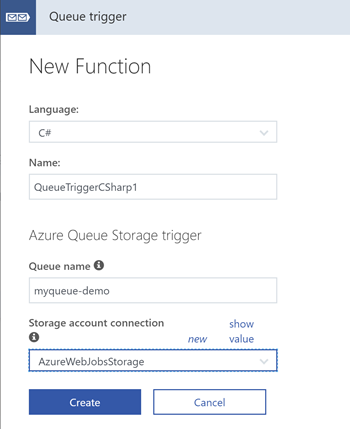
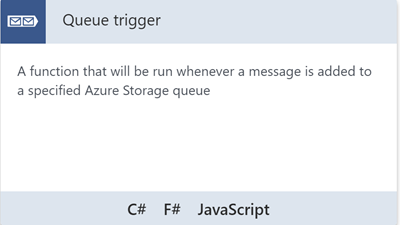
So first let’s create a Queue trigger.
image
Queue trigger
image
Queue trigger Properties
using System;
 
public static void Run(string myQueueItem, TraceWriter log)
{
    log.Info($"Queue trigger function processed: {myQueueItem}");
}
So every time a message get queued to myqueue-demo, QueueTriggerCSharp1 function will get triggered. It will just log the message, so we can see whether the data is getting correctly mapped when we are using Output bindings in our Manual trigger.

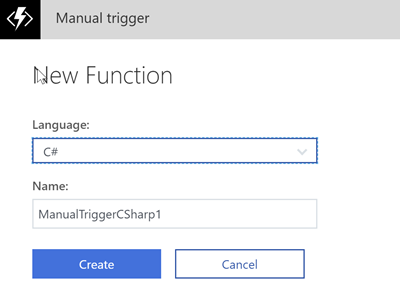
Now let’s create the Manual trigger.
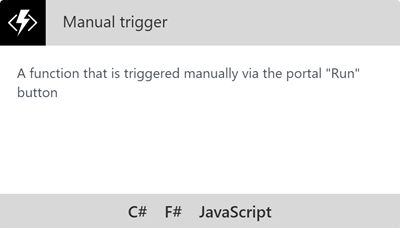
image
Manual trigger
image
Manual trigger Properties
using System;
 
public static void Run(string input, TraceWriter log)
{
    log.Info($"Manually triggered function called with input: {input}");
}


1. Using function return value


The most easiest way to map data to Output binding is using the functions return value.

I am changing our ManualTriggerCSharp1 as follows.
using System;
 
public static string Run(string input, TraceWriter log)
{
    log.Info($"Manually triggered function with input: {input}");
    return $"Using Return: {input}";
}
Now we have a function which returns a string. Our requirement is map this return value to a Output binding.

For that, let’s go to Integrate menu under our ManualTriggerCSharp1 function.
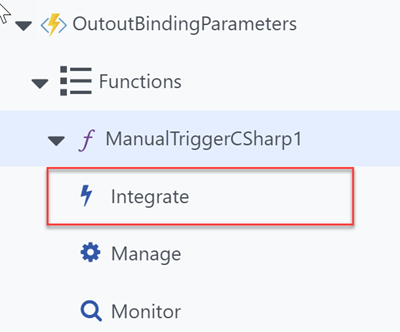
image
Integrate
And you will see something like below.
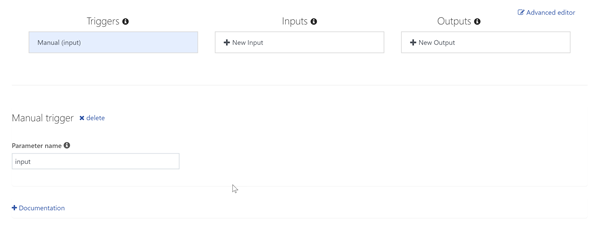
image
Integrate
Click on New Output under Outputs. Select Azure Queue Storage.
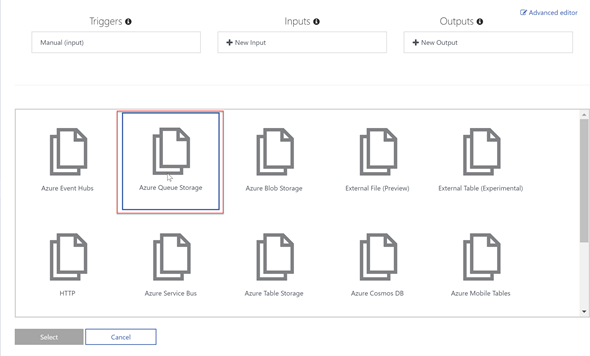
image
Select Output Type
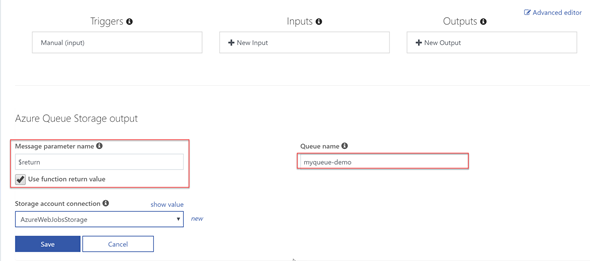
From next wizard page, you can simply select the “Use function return value”. Then you will need to select the Queue name and it’s Storage account connection which you want to write the output into.
image
New Output Properties
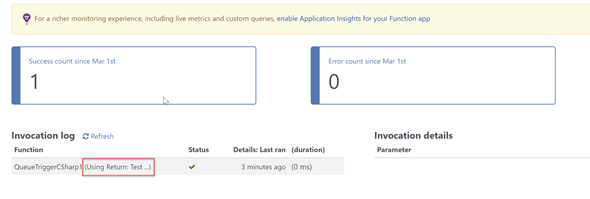
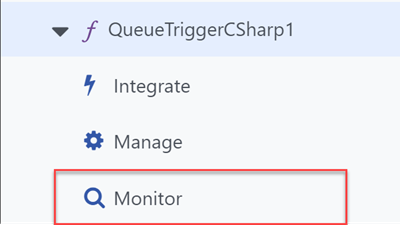
Click on Save, and run our Manual trigger. After running it, if you go to Monitor menu under QueueTriggerCSharp1, you can see the return value has been read.
SNAGHTML1ec1504c
Monitor
image
Monitor


2. Using out parameter


Now let’s modify our ManualTriggerCSharp1 function to have out parameter and set it’s value in the function body.
using System;
 
public static string Run(string input, TraceWriter log, out string outParameter)
{
    log.Info($"Manually triggered function with input: {input}");
 
    outParameter = $"Using Out: {input}";

    return $"Using Return: {input}";
}
Now let’s add this Output binding.

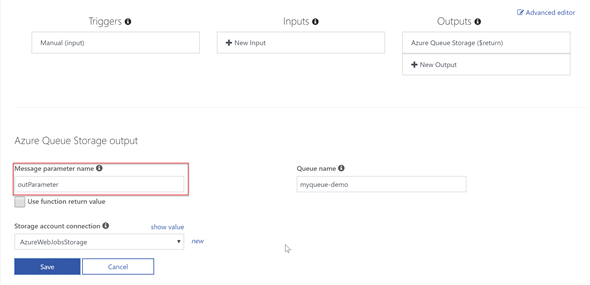
Again add a New Output and select Azure Queue Storage and then do as following (remember to specify the correct Queue name which our QueueTriggerCSharp1 is watching).
image
New Output Properties
Important thing to keep in mind is Message parameter name needs to be same as your out parameter name.

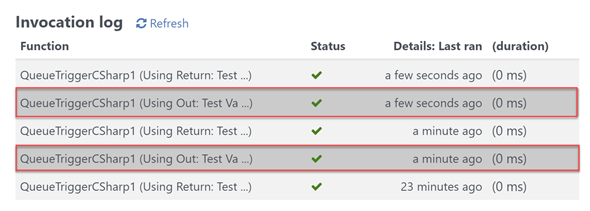
Save and run the manual trigger and examine the Monitor menu under QueueTriggerCSharp1.

Now you should be seeing the value of out parameter has been added to queue and is read.
image
Monitor
Now what if the function is an async one. Then we can’t use out parameters.

3. Using ICollector or IAsyncCollector


This is my preferred way of mapping data to Output bindings. One reason of course is most of the time, functions are async. And the other reason is, using Collectors we can pass multiple data. Let’s modify the ManualTriggerCSharp1 as follows.
using System;
 
public static async Task<string> Run(string input, TraceWriter log, IAsyncCollector<string> queueCollector)
{
    log.Info($"Manually triggered function with input: {input}");
 
    await queueCollector.AddAsync($"Using Collector: {input} 1");
    await queueCollector.AddAsync($"Using Collector: {input} 2");
 
    return $"Using Return: {input}";
}
Right now since we don’t have the existing outParameter and it’s binding, let’s change the previous Output binding.
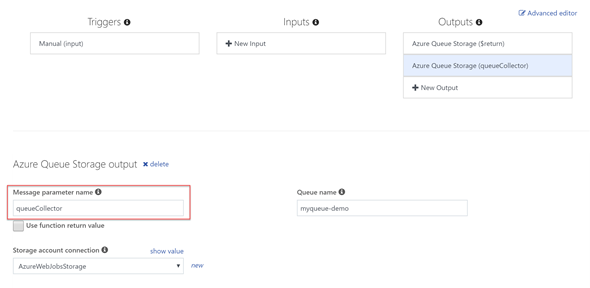
image
Output Properties
Again, we need to make sure Message parameter name is same as the function parameter name.

And if we save and run, we should be seeing the message is queued and read by QueueTriggerCSharp1.
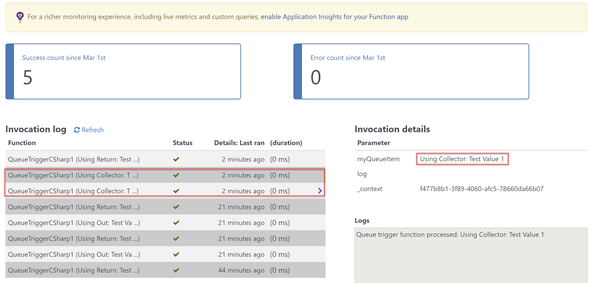
image
Monitor
And note: ICollector is the synchronous counterpart of IAsyncCollector and I don’t think it deserves a demonstration of it’s use.

Hope this helps.

Happy Coding.

Regards,
Jaliya

Saturday, March 3, 2018

Visual C# Technical Guru - January 2018

Another month as a judge in Microsoft TechNet Guru Awards under Visual C# category. The TechNet Guru Awards celebrate the technical articles on Microsoft TechNet.

Post in WikiNinjas Official Blog,
https://blogs.technet.microsoft.com/wikininjas/2018/03/02/microsoft-technet-guru-winners-january-2018/
image
Visual C# Technical Guru - January 2018
Happy Coding.

Regards,
Jaliya

Wednesday, February 14, 2018

Wrote a post on Wiki Life at Official Blog of TechNet Wiki

Wrote a post in Wiki Ninjas - Official Blog of TechNet Wiki. The title of the post is TNWiki Article Spotlight – Azure DevOps Project – A review of the preview.
image
TNWiki Article Spotlight – Azure DevOps Project – A review of the preview

Happy Coding.

Regards,
Jaliya

Thursday, February 1, 2018

Visual C# Technical Guru - December 2017

Another month as a judge in Microsoft TechNet Guru Awards under Visual C# category. The TechNet Guru Awards celebrate the technical articles on Microsoft TechNet.

Post in WikiNinjas Official Blog,
image
Visual C# Technical Guru - December 2017
Happy Coding.

Regards,
Jaliya

Wednesday, January 24, 2018

Rename/Move Files and Directories using git-mv

If you have used git, I am sure you must have experienced this where you have renamed files/folders specially a case change, it won't reflect in the remote. For instance, if you rename a file from helloworld.txt to helloWorld.txt or HelloWorld.txt, even though it's changed in the local, it won't get changed in the remote. 

In such cases, git-mv is a really handy command. A guy named Patrick Wied has written this wonderful post back in 2012 explaining use of git-mv with different scenarios. Great post!

Hope this helps.

Happy Coding.

Regards,
Jaliya

Thursday, January 18, 2018

Getting Started with Azure Functions

Serverless Computing has become a trending area in Azure than ever before. Basically, Serverless Computing is completely abstracting away the required resources from your concerns. It acts in an event-driven manner, resources are utilized only when you want them to, those are not up and running when you are not using them. So you are getting billed for only for what’s being used. You don’t have to worry about anything else.

When talking about Serverless Computing in Azure, as of today Azure provides following 3 set of features.
  1. Functions - Serverless Compute
  2. Logic Apps - Serverless Workflow
  3. Event Grid - Serverless Events
In this post, let’s see how we can get started with Azure Functions.

First, open up the Azure Portal. Go to New and search for “functions”. And click on Function App.
1. create
Function App
From the next panel, click on Create.
1.1 create
Create
From the next screen, fill in the details as required. For the Hosting Plan, let’s go ahead with the Consumption Plan because we can then get billed per execution of our functions.
3.  create config
New Function App Details
Once the function app is created. Find the created function app by going to More services and searching.
4. find function apps
Find Function Apps
And you should see all your function apps.
image
Function App
Now when you can click on created function app, you will something like below.
5. function app - overview
Function App: Overview
You can find the function app URL under Overview tab. If you click on the URL, an application will open, just as an App Service.
5. url-running
Function App
Function apps’ Settings is under Platform features.
5. function app - platform features
Function App: Platform Features
Right now to get us keep going, let’s create a Function. Click on Functions and then New Function as below.
6. new function
New Function
You are presented with a set of templates.
7. select template
Select Template
All the languages available are as follow (please note, for some of the languages all the templates are not available).
7. languages
Available Languages
First, let’s create an HTTP Trigger.
image
New HTTP Trigger
I have selected Language as C#. For the Name, you can give whatever the name you want. And then we need to select the Authorization level.
  • Function - A function-specific API key is required. This is the default value if none is provided.
  • Anonymous - No API key is required.
  • Admin - The master key is required.
Let’s go ahead with Anonymous for the purpose of the demo.

Once the function is created, you are presented with a page with a csx file. csx stands for C# Script file. Here you can edit the body of the Run method. Please note, you need to have the method signature as it is.

On the Test panel, let’s change the HTTP Method to GET and add in a new query parameter ‘’name”. Give it some value and click on Run, and you can see your Azure Function is running.
8. httptrigger
run.csx
You can get the function’s URL as above, let’s just copy it into a notepad.

To make the demo nicer, let’s add another function, this time a Timer trigger.
image
New Timer Trigger
I have selected C# as the Language, some Name and you can see the Schedule is expressed as a CRON expression. I have updated the CRON expression to every second.

Like the previous function, you will see the Run method, here let’s modify the method to send an HTTP GET to our previously created function.
using System;
 
public static async Task Run(TimerInfo myTimer, TraceWriter log)
{
    var client = new HttpClient();
    var response = await client.GetAsync("{FunctionUrl}?name=John");
    var result = await response.Content.ReadAsStringAsync();
 
    log.Info($"C# Timer trigger function executed at: {DateTime.Now}, Result: {result}");
}
You can replace the {FunctionUrl} with the URL we have copied over to notepad. And let’s run it. You can see our Timer trigger function is executing every second calling the HTTP trigger function.
9 - time trigger log
Timer Trigger Running Log
Isn’t it nice or what?

Happy Coding.

Regards,
Jaliya

Tuesday, January 16, 2018

Passing Nullable Value for a DbCommand Parameter

I had this requirement where I wanted to pass a nullable property for a Parameter in DbCommand.
public void Execute(int? someId)
{
    using (DbCommand dbCommand = _context.Database.GetDbConnection().CreateCommand())
    {
        dbCommand.CommandType = CommandType.StoredProcedure;
        dbCommand.CommandText = "sp_SomeStoredProcedure";
        dbCommand.Parameters.Add(new SqlParameter("ParameterId", someId);

        // some code
    }

    // some code
}
I was expecting when someId is null, ADO.NET will consider passing null for the parameter. But apparently, that doesn't seem to be the case. Got required parameter is not supplied error. I even tried below which I felt would work,
dbCommand.Parameters.Add(new SqlParameter("ParameterId", someId.HasValue ? someId.Value : null));
But kept getting the error. Finally, Null coalescing operator with DBNull was there to my rescue.
dbCommand.Parameters.Add(new SqlParameter("ParameterId", someId ?? (object)DBNull.Value));
Happy Coding.

Regards,
Jaliya

Tuesday, January 9, 2018

C# 7.2 : in Parameters

With C# 7.2, a nice set of syntax improvements that enable working with value types were introduced. My favorite among these is in Parameters.

In this post let’s see what in parameters really is.

As you have already know C# had ref and out for a quite a while now. If we recall what ref and out does (within parameter modifier context), it’s basically as follows.
static void Main(string[] args)
{
    Method1(out int i);
    Console.WriteLine(i); // 10
 
    Method2(ref i);
    Console.WriteLine(i); // 20
}
 
static void Method1(out int i)
{
    // Variable i needs to be assigned a value before leaving the method
    i = 10;
}
 
static void Method2(ref int i)
{
    // Variable i might/might not be assigned a value before leaving the method
    i = 20;
}
Both were used to pass the parameter by reference. The difference is when using out parameter, variable needs to be assigned a value before returning from the method. In ref parameter, there is no such requirement, within the method being called you can or not assign a value to ref parameter. But since there is a possibility of a value not being set there, before passing the ref parameter, it should have a value assigned.

But here from the caller, there is no option to say, within the method being called, the parameter should stay as readonly (if we make the parameter readonly, it’s affecting for outside use of the variable as well).

For this comes the in parameters.
static void Main(string[] args)
{
    Method1(out int i);
    Console.WriteLine(i); // 10
 
    Method2(ref i);
    Console.WriteLine(i); // 20
 
    Method3(i);
    Console.WriteLine(i); // 20
}
 
static void Method1(out int i)
{
    // Variable i needs to be assigned a value before leaving the method
    i = 10;
}
 
static void Method2(ref int i)
{
    // Variable i might/might not be assigned a value before leaving the method
    i = 20;
}
 
static void Method3(in int i)
{
    // Variable i is 20 and cannot assign a value
}
You can see, we have Method3 which accepts int i with in modifier. Unlike out and ref, when we are calling the methods which has in parameters, we don’t have to call like Method(in i). We can omit the in modifier, because the variable is going to be readonly within the method being called. Trying to set a value for in parameters from the method being called is illegal.

Isn’t it nice!

Happy Coding.

Regards,
Jaliya