Monday, January 25, 2016

Enabling Cross Origin Resource Sharing (CORS) in ASP.NET Web API 2

This is a quick post on how to enable CORS in Web API 2. It’s actually fairly an easy task. First you need to install Microsoft.AspNet.WebApi.Cors nuget package to the Web API project. You can do it from either of following ways.

1. Nuget Packet Manager
image
Nuget Packet Manager
2. Package Manager Console
Install-Package Microsoft.AspNet.WebApi.Cors
Then modify the Register method in WebApiConfig.cs as follows.
public static void Register(HttpConfiguration config)
{
   // enabling cross-origin requests
   config.EnableCors(new EnableCorsAttribute("*", "*", "GET, POST, OPTIONS, PUT, DELETE"));
 
   // other configuration
}
Make sure to add using System.Web.Http.Cors. You can customize the policy by setting different values to EnableCorsAttribute properties.

Happy Coding.

Regards,
Jaliya

Friday, January 22, 2016

Visual C# Technical Guru - December 2015

Another month as a judge in Microsoft TechNet Guru Awards under Visual C# category. The TechNet Guru Awards celebrate the technical articles on Microsoft TechNet.

Post in WikiNinjas Official Blog,
image
Visual C# Technical Guru - December 2015
Happy Coding.

Regards,
Jaliya

Friday, January 8, 2016

Using .NET Core with “dotnet” CLI

In this post let’s see how we can create a simple “Hello World” console application which targets .NET Core with the newly introduced “dotnet” Command Line Interface.

First what you need to do is install .NET Core to your machine. The easiest way to do is by running the following MSI installer.

After the installation, create a folder and open up a command prompt there (shift+right click on the folder and you can select Open command window here)
image
Open command window here
On the command prompt, just type dotnet and check the various options.
image
dotnet
According to the options, let’s start by running dotnet new command.
image
dotnet new
You can see some new files got created in the folder.
image
Project Folder
Here the Nuget.Config file contains the nuget v3 endpoints for grabbing .NET core libraries. The Program.cs is a simple application which will print “Hello World” to the console. The project.json will contain project’s dependencies, project’s target frameworks etc.

Next step is building the project. For that we can run dotnet restore command.
image
dotnet restore
When you run dotnet restore for the first time, you will see that a lot of libraries getting downloaded from nuget. Since I have already ran dotnet restore before for other projects, it has already downloaded the libraries into .dnx folder located in C:\Users\[user].

Once the package restoration completes, you can run dotnet run.
image
dotnet run
You don’t need to compile, the run command would do a compile and execute. Now if you examine your project folder, you will see that bin folder is created and there is a .dotnetrun folder and it has no assemblies there.
image
.dotnetrun Folder
If you want to get the assemblies, you can run dotnet compile command.
image
dotnet compile
And now if you examine the folder, you will see a folders created “bin\Debug\dnxcore50”, and you can find the executables there.
image
dnxcore50 Folder
Happy Coding.

Regards,
Jaliya

Tuesday, January 5, 2016

Using JSHint with an ASP.NET 5 Web Application

JSHint is one of the most popular JavaScript Code Quality Tools which is widely been used among the JavaScript developers. In this post let’s see how we can use JSHint with an ASP.NET 5 application using Visual Studio 2015.

First let’s create an ASP.NET 5 Web Application.
image
ASP.NET 5 Web Application.
Then from the Solution Explorer, under the project, expand “Dependencies” node. Right click on “npm” folder and open up the package.json file.
image
Open package.json
Add the “gulp-jshint” devDependency as follows (last line).
{
  "name": "ASP.NET",
  "version": "0.0.0",
  "devDependencies": {
    "gulp": "3.8.11",
    "gulp-concat": "2.5.2",
    "gulp-cssmin": "0.1.7",
    "gulp-uglify": "1.2.0",
    "rimraf": "2.2.8",
    "gulp-jshint": "2.0.0"
  }
}
Upon saving of the file, you will notice that relevant packages are getting downloaded/restored.

Next step is to modify the gulpfile.js and add a new task to run JSHint.

For that Open up the gulpfile.js and include the “gulp-jshint” plugin as follows (last line).
var gulp = require("gulp"),
    rimraf = require("rimraf"),
    concat = require("gulp-concat"),
    cssmin = require("gulp-cssmin"),
    uglify = require("gulp-uglify"),
    jshint = require("gulp-jshint");
And then add a new gulp task to run the JSHint.
gulp.task('jshint', function () {
    gulp.src("./wwwroot/" + "js/**/*.js")
      .pipe(jshint())
      .pipe(jshint.reporter('default'));
});
Now that is it. Open up the Task Runner Explorer and you should be able to see the new jshint task you have just created.
image
Task Runner Explorer
For testing the task, first let’s add some JavaScript codes to js files where the jshint task is watching. We have mentioned that jshint task is watching .js files inside wwwroot/js folder. In the default ASP.NET 5 project template there is a file named site.js, we can easily modify that.

I am adding following code there and you might notice that there are couple of issues with the code.
// Write your Javascript code.
 
"use strict";
 
function sayHello() {
    return 'Hello World!';
}
 
sayHello()
 
sayHelloWorld();
To find out what are those, from the Task Runner Explorer let’s run the jshint task.
image
Task Runner Explorer
image
Task Runner Explorer
As you can see jshint is showing up the list of issues. Even we can bind the task to run once the project is built.
image
Task Runner Explorer
So when the project is built, you will see the list of issues (if any) in the Task Runner Explorer. So now you can start fixing those.

Happy Coding.

Regards,
Jaliya

Sunday, January 3, 2016

Received Microsoft MVP Award in Visual Studio and Development Technologies

Received the precious Microsoft Most Valuable Professional (MVP) Award for the third consecutive year. And this time in Visual Studio and Development Technologies. In the last two years, I have been awarded MVP for Visual C# and then .NET.

Looking forward for a year filled with action on top of Microsoft Development Stack.
MVPLogo_thumb[2]
Microsoft Most Valuable Professional (MVP)
Thank you Microsoft for your appreciation and Thank you Fiqri IsmailWellington PereraChaminda Chandrasekara and all the people for your continuous support.

Happy Coding.

Regards,
Jaliya

Tuesday, December 22, 2015

Visual C# Technical Guru - November 2015

Another month as a judge in Microsoft TechNet Guru Awards under Visual C# category. The TechNet Guru Awards celebrate the technical articles on Microsoft TechNet.

image
Visual C# Technical Guru - November 2015
Happy Coding.

Regards,
Jaliya

Thursday, December 10, 2015

Wrote a TNWiki Article Spotlight at Official Blog of TechNet Wiki

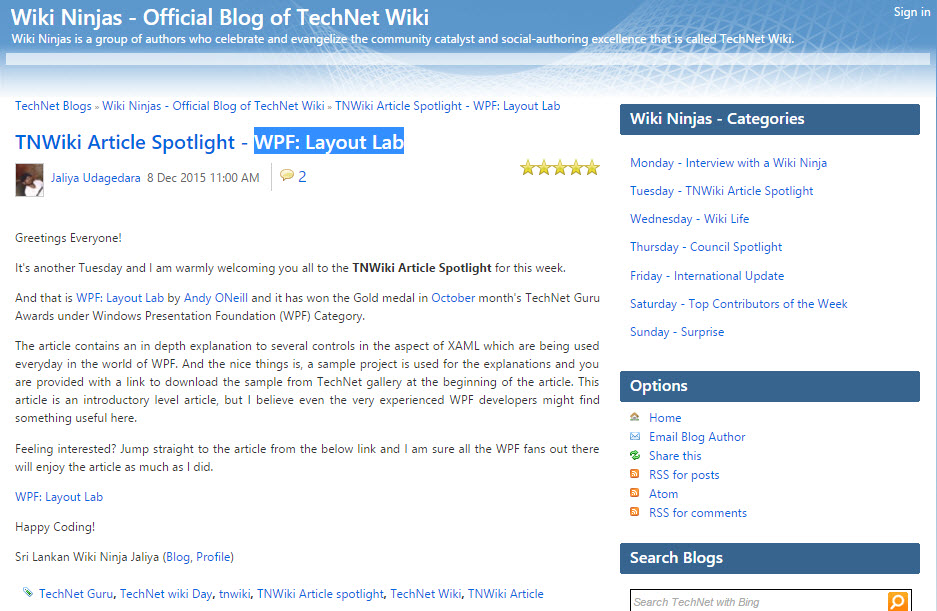
In this week’s TNWiki Article Spotlight, I wrote a post highlighting an article that won the October month's TechNet Guru Awards under Windows Presentation Foundation (WPF) Category, an article created by Andy ONeill titled WPF: Layout Lab.

image
TNWiki Article Spotlight - WPF: Layout Lab
Read the post on,
TNWiki Article Spotlight - WPF: Layout Lab

Happy Coding.

Regards,
Jaliya

Monday, November 23, 2015

Visual C# Technical Guru - October 2015

Another month as a judge in Microsoft TechNet Guru Awards under Visual C# category.

The TechNet Guru Awards celebrate the technical articles on Microsoft TechNet.

Post in WikiNinjas Official Blog,
image
Visual C# Technical Guru - October 2015
Happy Coding.

Regards,
Jaliya

Wednesday, November 18, 2015

“Go To Implementation” in Visual Studio 2015 Update 1 RC

One of my most wanted features in Visual Studio is now available in Visual Studio 2015 Update 1 RC. And I believe most of you must have been waiting for this as well. It’s the short cut for going to the implementation of a method in a interface or an abstract class.

Just right click on the method and select Go To Implementation.
image
Go To Implementation
And you will be navigated to the implementation.
image
Implementation
Imagine the following scenario. You have Web API controller and you are injecting so many interfaces and from a API action you are calling the method in the interface. To see the implementation, so far what I have used was Ctrl+Alt+F12 (Find Symbol Results). For instance if I Ctrl+Alt+F12 after putting the cursor on GetById method, this will be the output.

image
Find Symbol Results
So if you have some other methods named GetById, those will also be displayed in Find Symbol Results which will cause some pain finding what exactly you are looking for. Now no more pain, just right click on the method and Go To Implementation.
image
Go To Implementation
You will be landed on the Implementation. Isn’t it just great!

If you have not yet updated your Visual Studio 2015 to Update 1 RC, here you go.

Happy Coding.

Regards,
Jaliya

Friday, October 23, 2015

Using ASP.NET Web API as the Data Source for SSRS Reports

Imagine that you want to grab data for your SQL Server Reporting Service Report from calling an end point in ASP.NET Web API. This is a post to show how you can achieve it.

Let’s start from scratch. I have created ASP.NET Web API application from Visual Studio, and there I have the following controller named EmployeesController.
public class EmployeesController : ApiController
{
    public HttpResponseMessage GetEmployees()
    {
        List<Employee> employees = Employee.GetEmployees();
 
        return this.Request.CreateResponse(HttpStatusCode.OK, employees);
    }
}
 
public class Employee
{
    public int Id { get; set; }
    public string FirstName { get; set; }
    public string LastName { get; set; }
 
    public static List<Employee> GetEmployees()
    {
        return new List<Employee>()
        {
            new Employee() { Id = 1, FirstName = "Jaliya", LastName = "Udagedara" },
            new Employee() { Id = 2, FirstName = "John", LastName = "Smith" },
            new Employee() { Id = 3, FirstName = "Jane", LastName = "Smith" },
        };
    }
}
In the GetEmployees() action, I am returning a HttpResponseMessage with my List of Employees.

Now let’s create a simple SSRS Report using SQL Server Report Builder. I am opening up the SQL Server Report Builder, and from the Report Data toolbox, I am adding a new Data Source.
image
Report Data
In the Data Source dialog, for the Data Source Name, you can give what ever a name you want. For the Connection Type, I am selecting XML and for the Connection String, I am simply providing my Web API employees end point url.
image
Data Source
I am clicking on OK, and adding a new DataSet. Again for the DataSet Name, you can give any name, and I am selecting the “Use a dataset embedded in my report.” radio button. For the Data Source, I am selecting my previously created Data Source.
image
Data Set
And now I am clicking on the Query Designer. And from there, let’s click on the Execute Query button to see what happens.
image
Query Designer
I am thrown with a error, “Data at the root level is invalid.”. This is basically because since we have used Data source connection type as XML, SSRS is requesting data in XML format. And the Web API is retuning data in JSON format. To resolve the issue, we can simple add following line of code in the Web API Application_Start method.
GlobalConfiguration.Configuration.Formatters.XmlFormatter.MediaTypeMappings.Add(new QueryStringMapping("type", "xml", new MediaTypeHeaderValue("application/xml")));

This will modify the Web API content negotiation by checking if the request has a query string named type and it’s value, set to xml, and then the response will be sent in “application/xml”.

Now let’s modify the Connection String, in the Data source, as follows.
image
Data Source
And in the DataSet, from the Query Designer, let’s execute the query and see.
image
Query Designer
Now we are receiving the data as expected. Once you click on OK, it will notify that the query is blank. Doesn’t matter and let’s click on OK. Now you can see that the fields are generated in the DataSet and next step is to create the report. So that’s about it.

I am uploading the full sample to my OneDrive, and you can try it yourself.


Happy Coding.

Regards,
Jaliya