Sunday, April 29, 2018

Visual C# Technical Guru - March 2018

Another month as a judge in Microsoft TechNet Guru Awards under Visual C# category. The TechNet Guru Awards celebrate the technical articles on Microsoft TechNet.

Post in WikiNinjas Official Blog,
https://blogs.technet.microsoft.com/wikininjas/2018/04/27/march-2018-microsoft-technet-wiki-guru-winners/
image
Visual C# Technical Guru - March 2018
Happy Coding.

Regards,
Jaliya

Friday, April 27, 2018

Running Service Bus 1.1 and Service Fabric Side by Side?

I had a requirement where I wanted to have both Service Bus 1.1 and Service Fabric Side by Side on my laptop. One of the applications that I am working on required Service Bus 1.1 and another required Service Fabric. Apparently, it turned out only one can be running at a time, not the both.

Service Bus 1.1 was released back in late 2013 and uses Windows Fabric. So if you have Service Bus 1.1 installed before it installs a service named Windows Fabric Host Service.  But if you install Service Fabric Runtime and SDK on top of that, Windows Fabric Host Service which is required for Service Bus 1.1 is no longer there under Services, it’s getting removed by Service Fabric. So currently there is no way to have both the Service Bus 1.1 and Service Fabric running Side by Side in one single machine.

But there are two options. Unfortunately, both the options require moving Service Bus 1.1 away from your computer. If you are a developer, you need to have Service Fabric Runtime and SDK installed on your machine for sure.

1. Have the Service Bus Farm in a VM.

This option is kind of hard. You need to set up the Service Bus Farm on a different machine and configure the certificates required for hosts to connect to the server. Then you need to grab those and install on your local machine. That is a pain.

2. Use Azure Service Bus

This is pretty much straightforward, you just need to create a Service Bus application in Azure. You just need to change the connection string and most of the time it should work without any code changes.

Hope this helps someone who is having the same requirement and save him/her some time.

Happy Coding.

Regards,
Jaliya

Wednesday, April 25, 2018

Wrote a post on Wiki Life at Official Blog of TechNet Wiki

Wrote a post in Wiki Ninjas - Official Blog of TechNet Wiki. The title of the post is TNWiki Article Spotlight – Logic Apps: Integrating LUIS Application With Logic Apps To Predict Intent in User Utterances.
image
TNWiki Article Spotlight – Logic Apps: Integrating LUIS Application With Logic Apps To Predict Intent in User Utterances
Read the rest on,
TNWiki Article Spotlight – Logic Apps: Integrating LUIS Application With Logic Apps To Predict Intent in User Utterances

Happy Coding.

Regards,
Jaliya

Sunday, April 22, 2018

Session : Serverless Computing with Azure Functions at Global Azure Bootcamp 2018 - Colombo, Sri Lanka

I was fortunate enough to make it on stage and deliver a session at Global Azure Bootcamp 2018 - Colombo, Sri Lanka.

Global Azure Bootcamp is a worldwide event happening on April 21 each year and this time it has happened for the 6th time all around the world. In Sri Lanka, the event was organized by a couple of Microsoft MVPs lead by Shameera Prajapriya who is an MVP on Microsoft Azure.

The entire day was filled with great sessions delivered by industry experts from a variety of areas.
30715905_991374004371409_1581081584549756928_o
 Global Azure Bootcamp 2018 - Colombo, Sri Lanka Speaker Panel
I delivered my hour-long session on the topic Serverless Computing with Azure Functions.
30708440_993063324202477_3978026227410665472_o
Serverless Computing with Azure Functions
There I went through the following areas along with a demo,
  • Serverless Computing
  • Azure Functions
  • Azure Functions Proxies
  • Performance Considerations

Slide Deck


Demo Source Code
   https://github.com/jaliyaudagedara/AzureFunctionApplication

Happy Coding.

Regards,
Jaliya

Friday, April 20, 2018

Session : Jumpstart to Azure Functions at Sri Lanka Developer Forum

Delivered an hour-long session titled Jumpstart to Azure Functions at Sri Lanka Developer Forum meetup for the month of April 2018. There I went through the following areas along with a demo,
  • Serverless Computing
  • Azure Functions
  • Azure Functions Proxies
  • Performance Considerations
highres_469721004
Sri Lanka Developer Forum - April, 2018
For more information,
   Meetup Event

Happy Coding.

Regards,
Jaliya

Wednesday, April 11, 2018

Durable Functions in Azure Functions for Function Chaining

When designing Azure functions one of the best practices that Microsoft recommends is Azure functions should be stateless.

But imagine you have this requirement, where you to need call an Azure function and the output of that function needs to be applied as the input of another function and so on and so forth.
image
Function Chaining
This scenario is known as Function chaining. The very first function (say F0) which orchestrates F1, F2, F3, and F4 will need to maintain the return values and control the flow. But what if after x amount of time, the process running F0 recycles or the VM which F0 is running on rebooted. If we use regular Azure Functions, since we aren’t maintaining state, we can’t track at which point the F0 got failed.

Enter Durable Functions.

Durable Functions are designed to do all the hard work of maintaining the function state for us. It's built on top of Durable Task Framework. As of today (10th April 2018) Durable Functions are in the preview stage.

In this post let's see how Durable Functions can be used to chain functions. It’s always best to go by an example. First, let’s see how we can create Durable Functions. Please note all the instructions given are as of today, these steps might change over time.

If you are using Azure Portal, if you create a new Function App, by default it’s using Runtime 1.x. And because of that, you won’t be able to see any Durable Function templates when creating new functions. For that, you need to go to Function App Settings and change the runtime to beta.
image
Function App Settings
image
Runtime Version
Here I have already switched to beta. Alternatively, you can go to Application Settings and change the FUNCTIONS_EXTENSION_VERSION to beta.

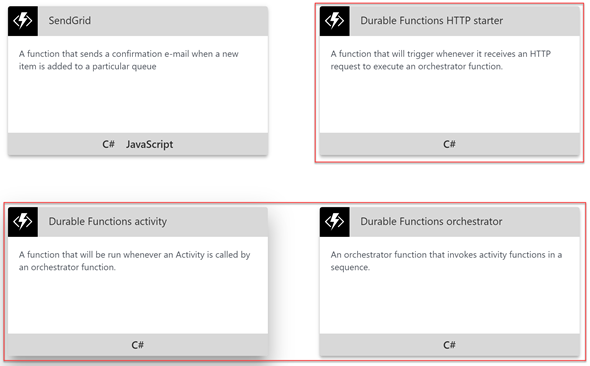
And then if you try to create a new function, you can see all the Durable Functions related templates.
image
Durable Functions Templates
When you try to create a new function using one of the above templates, you will be prompted to install Durable Functions extension.

If you are using Visual Studio, make sure you are on 15.3 or greater and Azure Development workload is included in your setup.

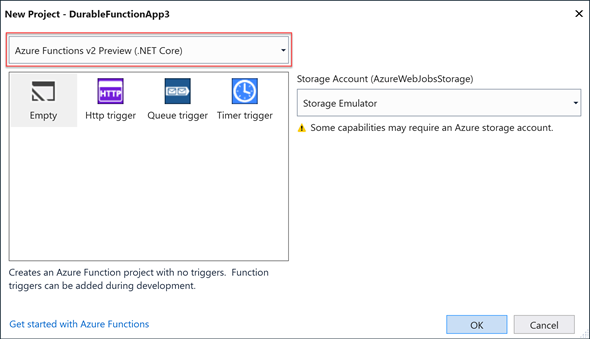
And when you are creating new Function App, make sure to select Azure Functions V2 Preview (.NET Core).
image
New Project
For this demo, let’s go ahead with Visual Studio. Once the project is created, let’s add a new function using Durable Functions Orchestration template.

image
Templates
Once it’s created, you can see that Microsoft.Azure.WebJobs.Extensions.DurableTask NuGet package is added for us.
image
project.csproj
I have modified the default file to something like below.
public static class Function1
{
    [FunctionName("Function1")]
    public static async Task<int> RunOrchestrator(
        [OrchestrationTrigger] DurableOrchestrationContext context)
    {
        int x = await context.CallActivityAsync<int>("GetSum", new SumModel(1, 10));
        int y = await context.CallActivityAsync<int>("GetSum", new SumModel(x, 10));
        int z = await context.CallActivityAsync<int>("GetSum", new SumModel(y, 10));
 
        return z; // z = 31
    }
 
    [FunctionName("GetSum")]
    public static int GetSum([ActivityTrigger] SumModel model, TraceWriter log)
    {
        // Time consuming operation
        return model.Number1 + model.Number2;
    }
 
    [FunctionName("Function1_HttpStart")]
    public static async Task<HttpResponseMessage> HttpStart(
        [HttpTrigger(AuthorizationLevel.Anonymous, "get", "post")]HttpRequestMessage req,
        [OrchestrationClient]DurableOrchestrationClient starter,
        TraceWriter log)
    {
        // Function input comes from the request content.
        string instanceId = await starter.StartNewAsync("Function1", null);
 
        log.Info($"Started orchestration with ID = '{instanceId}'.");
 
        return starter.CreateCheckStatusResponse(req, instanceId);
    }
}
 
public class SumModel
{
    public int Number1 { get; private set; }
    public int Number2 { get; private set; }
 
    public SumModel(int number1, int number2)
    {
        Number1 = number1;
        Number2 = number2;
    }
}
Here at the bottom, we have a HttpTrigger Function1_HttpStart to trigger the Orchestrator function which is Function1. Function1 will call GetSum multiple times to make it like a chain.

There are a couple of interesting things happening here. Imagine GetSum takes 10 seconds to complete. So that means Function1 will be running for more than 30 seconds. But it’s not. After calling GetSum, Function1 goes to sleep. And when GetSum returns completing his functionality, he notifies Function1 with the return values and Function1 resumes its operation. For all these time, the state is getting managed by the runtime.

Isn’t it fascinating.

There are different scenarios where Durable Functions is coming really handy, please do check those out using the link below.
https://docs.microsoft.com/en-us/azure/azure-functions/durable-functions-overview

Happy Coding.

Regards,
Jaliya

Tuesday, March 27, 2018

Visual C# Technical Guru - February 2018

Another month as a judge in Microsoft TechNet Guru Awards under Visual C# category. The TechNet Guru Awards celebrate the technical articles on Microsoft TechNet.

image
Visual C# Technical Guru - February 2018
Happy Coding.

Regards,
Jaliya

Azure App Service: Enabling Static Content

I had an AngularJS application running as an Azure App Service and noted that it doesn’t serve JSON files.

The fix was simple, adding a web.config file manually and allowing static content.
<configuration>
  <system.webServer>
    <staticContent>
      <mimeMap fileExtension="json" mimeType="application/json" />
    </staticContent>
  </system.webServer>
</configuration>
Happy Coding.

Regards,
Jaliya

Wednesday, March 21, 2018

Azure Functions: Map Data to Output Bindings

From Azure Functions, we can map data to Output bindings using following three options.
  1. Using function return value
  2. Using out parameter
  3. Using ICollector or IAsyncCollector
In this post let’s have a look at them in detail. I have created a Azure Function App using the Azure Portal and I will be using portals’ editor in this post.

The scenario I am going use is, I will have a Azure Function which can be triggered manually. From there I will be outputting messages to a Azure Storage Queue.

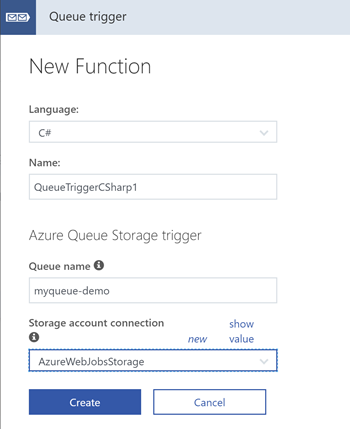
So first let’s create a Queue trigger.
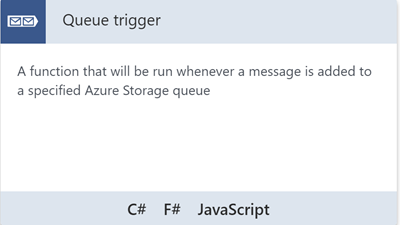
image
Queue trigger
image
Queue trigger Properties
using System;
 
public static void Run(string myQueueItem, TraceWriter log)
{
    log.Info($"Queue trigger function processed: {myQueueItem}");
}
So every time a message get queued to myqueue-demo, QueueTriggerCSharp1 function will get triggered. It will just log the message, so we can see whether the data is getting correctly mapped when we are using Output bindings in our Manual trigger.

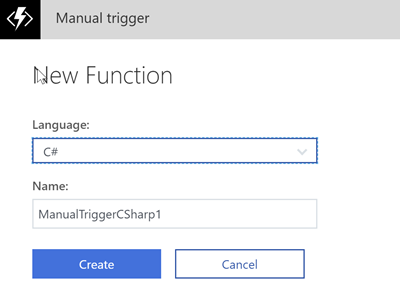
Now let’s create the Manual trigger.
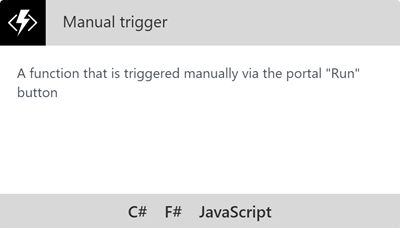
image
Manual trigger
image
Manual trigger Properties
using System;
 
public static void Run(string input, TraceWriter log)
{
    log.Info($"Manually triggered function called with input: {input}");
}


1. Using function return value


The most easiest way to map data to Output binding is using the functions return value.

I am changing our ManualTriggerCSharp1 as follows.
using System;
 
public static string Run(string input, TraceWriter log)
{
    log.Info($"Manually triggered function with input: {input}");
    return $"Using Return: {input}";
}
Now we have a function which returns a string. Our requirement is map this return value to a Output binding.

For that, let’s go to Integrate menu under our ManualTriggerCSharp1 function.
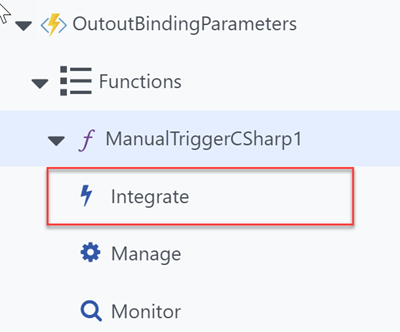
image
Integrate
And you will see something like below.
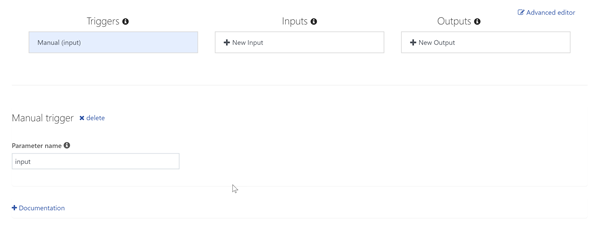
image
Integrate
Click on New Output under Outputs. Select Azure Queue Storage.
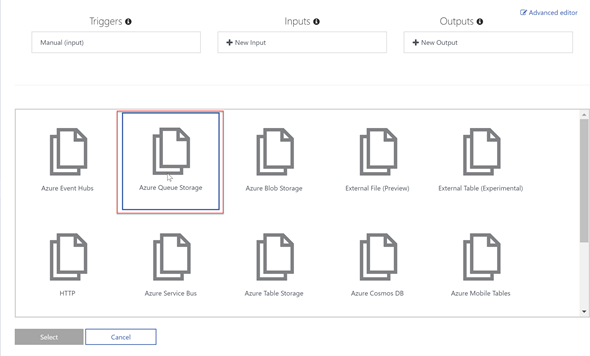
image
Select Output Type
From next wizard page, you can simply select the “Use function return value”. Then you will need to select the Queue name and it’s Storage account connection which you want to write the output into.
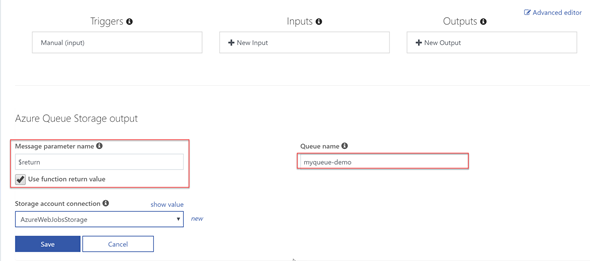
image
New Output Properties
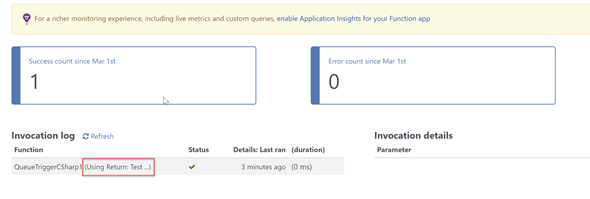
Click on Save, and run our Manual trigger. After running it, if you go to Monitor menu under QueueTriggerCSharp1, you can see the return value has been read.
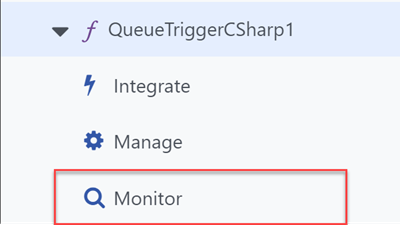
SNAGHTML1ec1504c
Monitor
image
Monitor


2. Using out parameter


Now let’s modify our ManualTriggerCSharp1 function to have out parameter and set it’s value in the function body.
using System;
 
public static string Run(string input, TraceWriter log, out string outParameter)
{
    log.Info($"Manually triggered function with input: {input}");
 
    outParameter = $"Using Out: {input}";

    return $"Using Return: {input}";
}
Now let’s add this Output binding.

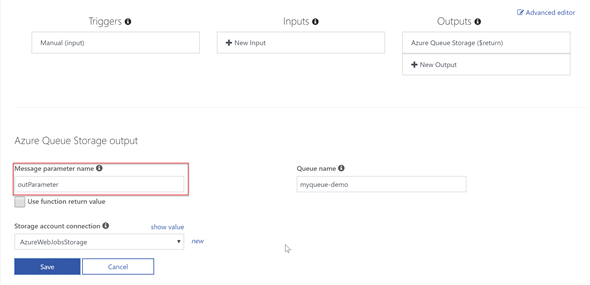
Again add a New Output and select Azure Queue Storage and then do as following (remember to specify the correct Queue name which our QueueTriggerCSharp1 is watching).
image
New Output Properties
Important thing to keep in mind is Message parameter name needs to be same as your out parameter name.

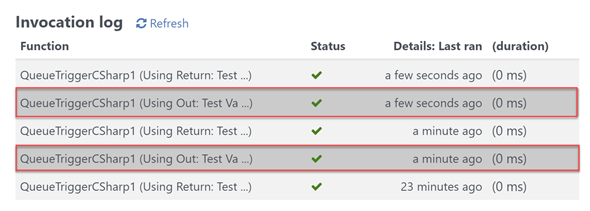
Save and run the manual trigger and examine the Monitor menu under QueueTriggerCSharp1.

Now you should be seeing the value of out parameter has been added to queue and is read.
image
Monitor
Now what if the function is an async one. Then we can’t use out parameters.

3. Using ICollector or IAsyncCollector


This is my preferred way of mapping data to Output bindings. One reason of course is most of the time, functions are async. And the other reason is, using Collectors we can pass multiple data. Let’s modify the ManualTriggerCSharp1 as follows.
using System;
 
public static async Task<string> Run(string input, TraceWriter log, IAsyncCollector<string> queueCollector)
{
    log.Info($"Manually triggered function with input: {input}");
 
    await queueCollector.AddAsync($"Using Collector: {input} 1");
    await queueCollector.AddAsync($"Using Collector: {input} 2");
 
    return $"Using Return: {input}";
}
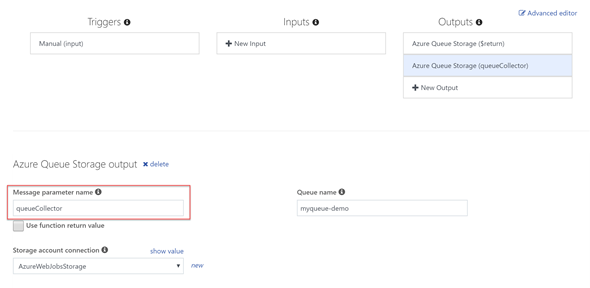
Right now since we don’t have the existing outParameter and it’s binding, let’s change the previous Output binding.
image
Output Properties
Again, we need to make sure Message parameter name is same as the function parameter name.

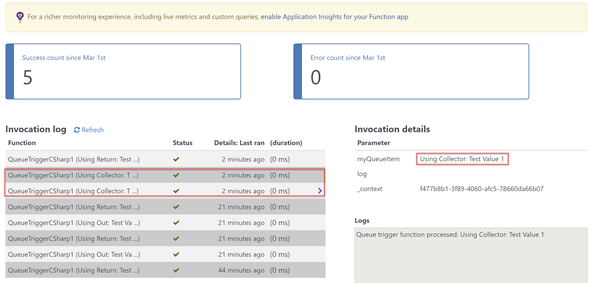
And if we save and run, we should be seeing the message is queued and read by QueueTriggerCSharp1.
image
Monitor
And note: ICollector is the synchronous counterpart of IAsyncCollector and I don’t think it deserves a demonstration of it’s use.

Hope this helps.

Happy Coding.

Regards,
Jaliya

Saturday, March 3, 2018

Visual C# Technical Guru - January 2018

Another month as a judge in Microsoft TechNet Guru Awards under Visual C# category. The TechNet Guru Awards celebrate the technical articles on Microsoft TechNet.

Post in WikiNinjas Official Blog,
https://blogs.technet.microsoft.com/wikininjas/2018/03/02/microsoft-technet-guru-winners-january-2018/
image
Visual C# Technical Guru - January 2018
Happy Coding.

Regards,
Jaliya