Thursday, October 25, 2012

netTcpBinding in WCF Services

I have wrote some posts about WCF and today I am going to write about configuring netTcpBinding in WCF as it needs some little extra work. WCF or Windows Communication Foundation is one my favorite areas in the .NET Framework and bindings is one of the things which I like the most in WCF.

Before starting off, there is a small check list to be checked. First is, you can’t configure netTcpBinding, if your service is running in the Visual Studio Development Server. The reason for this is Visual Studio Development Server only supports HTTP. And to configure netTcpBinding, we need IIS 7. This will not work on previous versions of IIS. 

Next you have to make sure “Windows Communication Foundation Non-HTTP Activation” is available. Since I am using Windows Server 2008R2 operating system, it’s on the .NET Framework 3.5.1 Features under Features in Server Manager.
image
WCF Activation
Final item in the check list is, you have to make sure following service is started.
image
Net.Tcp Listener Adapter
Now I have created a WCF Service Application and I have changed the project properties as follows.
image
Use Local IIS Web Server
Then you can click on "Create Virtual Directory" button or if you run the project for the first time without clicking it, you will be asked before Visual Studio creating a directory for you. After creating the virtual directory you can see it under “Default Web Site” in the IIS.
image
Default Web Site in IIS
Now you have to do two configurations in IIS. Right click on “Default Web Site” and click on "Edit Bindings". Check whether net.tcp type is there and if not add it.
image
Default Web Site : Site Bindings
Now right click on created Virtual Directory and select "Advanced Settings" under Manage Applications. In Enabled Protocols add net.tcp.
Untitled
Advanced Settings of created virtual directory
Now you are done with the IIS configurations. Now modify the web.config as follows.
<system.serviceModel>
    <behaviors>      
        <serviceBehaviors>
            <behavior> 
                <!-- To avoid disclosing metadata information, set the value below to false and remove the metadata endpoint above before deployment -->
                <serviceMetadata httpGetEnabled="false"/>
                <!-- To receive exception details in faults for debugging purposes, set the value below to true.  Set to false before deployment to avoid disclosing exception information -->
                <serviceDebug includeExceptionDetailInFaults="false"/>
            </behavior>
        </serviceBehaviors>
    </behaviors>

    <services>
        <service name="WcfApplication.Service1">
            <endpoint address="" contract="WcfApplication.IService1" binding="netTcpBinding"></endpoint>
            <endpoint address="mex" contract="IMetadataExchange" binding="mexTcpBinding"></endpoint>

            <host>
                <baseAddresses>
                    <add baseAddress="http://localhost/WcfApplication/Service.svc" />
                </baseAddresses>
            </host>
        </service>
    </services>

    <serviceHostingEnvironment multipleSiteBindingsEnabled="true" />
</system.serviceModel>


And that's it. In here please note that I have put httpGetEnabled to "false". Now right click on the Service and view it in your browser. You will get something like this.
Untitled
Created Service
Now you can test this service by adding a service reference from another project or by using WCF Test Client which is located at,
"C:\Program Files (x86)\Microsoft Visual Studio 10.0\Common7\IDE\WcfTestClient.exe".
In here I am using the WCF Test Client.
image
WCF Test Client
image
WCF Test Client : Testing the service
That’s all. Hope this helps.

Happy Coding.

Regards,
Jaliya

Friday, October 19, 2012

Installing Windows Phone SDK 7.1 on Windows Server 2008R2

When you try to install Windows Phone SDK 7.1 on a Windows Server 2008/2008R2 operating system, you will be smashed with this error which says “Windows 7 or Windows Vista is required”.
Untitled
"Windows 7 or Windows Vista is required"
If you are thinking about trying this installation again in Windows 7 or Windows Vista machine, you don’t have to. There is a simple workaround for this.
  1. Download the web installer. I am saving the installer in a folder named “Windows Mobile” in my D: drive.
  2. Extract the installer by running this command vm_web2.exe /x
    Untitled2
    extracting the installer
  3. You will be asked to select a extract folder. Give a extraction folder and extract.
  4. Open the extracted folder and open the “baseline.dat” file in a text editor.
  5. Find the section named “[gencomp7788]”.
  6. Change following values.
    • InstallOnLHS value from “1” to “0”
    • InstallOnWin7Server value from “1” to “0”
  7. Save and close “baseline.dat”.
  8. Run setup.exe /web from the extracted folder. By specifying "web" parameter we are forcing setup to download the packages it needs to install.
    Untitled3
    running the setup
That’s all. Now you are done.
Untitled1
Starting the installation
Hope this helps.

Happy Coding.

Regards,
Jaliya

Thursday, October 18, 2012

ASP.NET GridView Inside an Update Panel

Sometimes there can be situations where you need to update a gridview inside a ASP.NET page without refreshing the page. This is how you can do it with Update Panel in AJAX Extensions. In here I have two gridviews and one is inside the Update Panel and the other one is out of the Update Panel. I am using the timer control to update the gridview in a timely manner.

I am pasting the source code below.

_Default.aspx

<%@ Page Title="Home Page" Language="C#" MasterPageFile="~/Site.master" AutoEventWireup="true" CodeBehind="Default.aspx.cs" Inherits="GridViewUpdate._Default" %>
<asp:Content ID="HeaderContent" runat="server" ContentPlaceHolderID="HeadContent">
</asp:Content>
<asp:Content ID="BodyContent" runat="server" ContentPlaceHolderID="MainContent">
<asp:ScriptManager ID="ScriptManager1" runat="server"/>

    <asp:Timer runat="server" ID="tmrTimer" Interval="30000" OnTick="tmrTimer_Tick" />

    <asp:UpdatePanel runat="server" id="pnlUpdate">
        <Triggers>
            <asp:AsyncPostBackTrigger ControlID="tmrTimer" eventname="Tick"/>
        </Triggers>
        <ContentTemplate>
            <h2>Inside Update Panel</h2>
            <asp:GridView ID="gvCustomer" runat="server" 
                AutoGenerateColumns="False" GridLines="Both" AllowPaging="True">
                <Columns>
                    <asp:TemplateField HeaderText="Customer ID">
                        <ItemTemplate>
                            <asp:Label runat="server" ID="lblCustomerID" Text='<%# Eval("CUSTOMER_ID") %>' />
                        </ItemTemplate>                   
                    </asp:TemplateField>
                    
                    <asp:TemplateField HeaderText="First Name">
                        <ItemTemplate>                            
                            <asp:Label runat="server" ID="lblFirstName" Text='<%# Eval("CUSTOMER_FIRST_NAME") %>' />
                       </ItemTemplate>                    
                    </asp:TemplateField>

                    <asp:TemplateField HeaderText="Last Name">
                        <ItemTemplate>
                            <asp:Label runat="server" ID="lblLastName" Text='<%# Eval("CUSTOMER_LAST_NAME") %>' />
                        </ItemTemplate>
                    </asp:TemplateField>
                </Columns>
            </asp:GridView>
        </ContentTemplate>
    </asp:UpdatePanel>        

    <h2>Not Inside Update Panel</h2>
    <asp:GridView ID="gvCustomer1" runat="server" 
         AutoGenerateColumns="False" GridLines="Both" AllowPaging="True">
        <Columns>
            <asp:TemplateField HeaderText="Customer ID">
                <ItemTemplate>
                    <asp:Label runat="server" ID="lblCustomerID" Text='<%# Eval("CUSTOMER_ID") %>' />
                </ItemTemplate>
            </asp:TemplateField>

            <asp:TemplateField HeaderText="First Name">
                <ItemTemplate>  
                  <asp:Label runat="server" ID="lblFirstName" Text='<%# Eval("CUSTOMER_FIRST_NAME") %>' />
                </ItemTemplate>
            </asp:TemplateField>

            <asp:TemplateField HeaderText="Last Name">
                <ItemTemplate>
                    <asp:Label runat="server" ID="lblLastName" Text='<%# Eval("CUSTOMER_LAST_NAME") %>' />
                </ItemTemplate>
            </asp:TemplateField>
        </Columns>    
    </asp:GridView>
</asp:Content>

In here Timer Interval is "30000" and that is in miliseconds. So the interval between every "Tick" event is 30 seconds.

_Default.aspx.cs
using System;

namespace GridViewUpdate
{
    public partial class _Default : System.Web.UI.Page
    {
        //my custom dbconnection class
        private readonly DbConnection _dbConnection = new DbConnection();

        protected void Page_Load(object sender, EventArgs e)
        {
            if (!IsPostBack)
            {
                Bind();
            }
        }

        private void Bind()
        {
            const string query = "SELECT CUSTOMER_ID,CUSTOMER_FIRST_NAME,CUSTOMER_LAST_NAME FROM CUSTOMER";

            //my custom method that is in the dbconnection class that 
            //accepts a string query and returns a dataset
            gvCustomer.DataSource = _dbConnection.SelectDataSet(query);
            gvCustomer.DataBind();

            //my custom method that is in the dbconnection class that 
            //accepts a string query and returns a dataset
            gvCustomer1.DataSource = _dbConnection.SelectDataSet(query);
            gvCustomer1.DataBind();
        }

        protected void tmrTimer_Tick(object sender, EventArgs e)
        {
            Bind();
        }
    }
}
That’s it. Now I am running it and I can see something like this.
Before
Before
And then I am adding a new record to my customer table, but I am not refreshing my page. Then I can see something like this in few seconds.
After
After
You can see that, only the gridview which is inside the Update Panel is updated. Other is not. So hope this helps.

Happy Coding.

Regards,
Jaliya

Wednesday, October 17, 2012

Retrieve default and available values of Report Parameters using C# : ReportingService2010

I have been playing around with Reporting Services Web service ReportingService2010 for some time and I got really surprised from the things that we can do using this web service. Today I am going to write about retrieving the default and available values of a report parameter using C#. Sometimes back I wrote a post about Accessing Report Server using Report Server Web Service - Microsoft SQL Server 2008R2. So I am not going to write a more detailed post here.

Without much information, I will just paste the code down. Value retrieving part is in bold.
        /// <summary>
        /// pName is the parameter I want to get the default and available values for
        /// </summary>
        /// <param name="pName"></param>
        private void GetDefaultAndAvailableValues(string pName)
        {
            //credentials to connec to the web service
            var userName = "username";
            var password = "password";

            //connecting to web service
            var clientCredentials = new NetworkCredential(userName, password);
            var rs = new ReportingService2010SoapClient();
            if (rs.ClientCredentials != null)
            {
                rs.ClientCredentials.Windows.AllowedImpersonationLevel = TokenImpersonationLevel.Impersonation;
                rs.ClientCredentials.Windows.ClientCredential = clientCredentials;
            }

            //open the connection
            rs.Open();

            var oTrustedUserHeader = new TrustedUserHeader();
            string historyId = null;
            ParameterValue[] values = null;
            DataSourceCredentials[] credentials = null;
            ItemParameter[] itemParameter = null;

            //all the parameters of the report will be filled to out parameter 'itemParameter'
            rs.GetItemParameters(oTrustedUserHeader, "/MyReports/Dev/MyReport", historyId, true, values, credentials, out itemParameter);

            //iterate through parameters
            foreach (ItemParameter ip in itemParameter)
            {
                //check for the parameter I want to get default and available values for
                if (pName == ip.Name)
                {
                    //get default values
                    string[] defValues = ip.DefaultValues;

                    //get valid/available values
                    ValidValue[] validValues = ip.ValidValues;
                    foreach (ValidValue vValue in validValues)
                    {
                        //ValidValue has Label property and Value property
                        //if you check the parameters in report designer, every parameter has Label field and Value field
                        ddlParamValues.Items.Add(new ListItem(vValue.Label,vValue.Value));
                    }
                }
            }
            //close the connection
            rs.Close();
        }

And this is the output I am getting.
Untitled
Output
Hope this helps.

Happy Coding.

Regards,
Jaliya

Wednesday, October 3, 2012

Creating Data-driven Subscription Programmatically using C# – Delivery Extension : Email

In my last post I have mentioned I will write a post about creating Data-driven subscription programmatically and this is it. I am creating this subscription on Microsoft SQL Server 2008R2 using the method   CreateDataDrivenSubscription in ReportService2010 web service. In one of my last posts I wrote about Accessing Report Server using Report Server Web Service.

Reporting Services includes an e-mail delivery extension and a file share delivery extension. In here I will be using Email  Delivery Extension.

Before creating the Data-driven subscription make sure SQL Server Agent service is up and running. That’s because what really happens when you create Data-driven subscription is, there will be job created in SQL Server.
Untitled
SQL Server Agent
Without much information, I am pasting the code down here with all the comments. I have added a service reference to ReportService2010 web service.
using System;
using System.Globalization;
using System.Net;
using System.Security.Principal;
using System.Web.Services.Protocols;
using System.Windows.Forms;
using DataDrivenSubscriptionWebApp.wsReportService;

namespace DataDrivenSubscriptionWebApp
{
    public partial class _Default : System.Web.UI.Page
    {
        protected void Page_Load(object sender, EventArgs e)
        {

        }

        protected void Button1_Click(object sender, EventArgs e)
        {
            CreateDataDrivenSubscription();
        }

        private static void CreateDataDrivenSubscription()
        {
            // connecting to report server web service
            var clientCredentials = new NetworkCredential("administrator", "123@com");
            var rs = new ReportingService2010SoapClient();
            if (rs.ClientCredentials != null)
            {
                rs.ClientCredentials.Windows.AllowedImpersonationLevel = TokenImpersonationLevel.Impersonation;
                rs.ClientCredentials.Windows.ClientCredential = clientCredentials;
            }
            rs.Open();

            var oTrustedUserHeader = new TrustedUserHeader();

            // report which i am creating data-driven subscription for
            const string report = "/My Reports/Reports/Report1";
            const string description = "Programmatic Data Driven Subscription for Email";

            // Set the extension setting as report server email.
            var settings = new ExtensionSettings {Extension = "Report Server Email"};

            // Set the extension parameter values.
            var extensionParams = new ParameterValueOrFieldReference[8];

            var to = new ParameterFieldReference {ParameterName = "TO", FieldAlias = "EMAIL"}; // Data-driven.
            extensionParams[0] = to;

            var replyTo = new ParameterValue {Name = "ReplyTo", Value = "jaliya.udagedara@gmail.com"};
            extensionParams[1] = replyTo;

            var includeReport = new ParameterValue {Name = "IncludeReport", Value = "False"};
            extensionParams[2] = includeReport;

            var renderFormat = new ParameterValue {Name = "RenderFormat", Value = "HTML4.0"};
            extensionParams[3] = renderFormat;

            var priority = new ParameterValue {Name = "Priority", Value = "NORMAL"};
            extensionParams[4] = priority;

            var subject = new ParameterValue {Name = "Subject", Value = "Subsribed Report"};
            extensionParams[5] = subject;

            var comment = new ParameterValue {Name = "Comment", Value = "Here is the link to your report."};
            extensionParams[6] = comment;

            var includeLink = new ParameterValue {Name = "IncludeLink", Value = "True"};
            extensionParams[7] = includeLink;

            settings.ParameterValues = extensionParams;

            // Create the data source for the delivery query.
            var delivery = new DataSource {Name = ""};
            var dataSourceDefinition = new DataSourceDefinition
                                           {
                                               ConnectString = "Data Source=(local);Initial Catalog=SAMPLE_DB",
                                               CredentialRetrieval = CredentialRetrievalEnum.Store,
                                               Enabled = true,
                                               EnabledSpecified = true,
                                               Extension = "SQL",
                                               ImpersonateUserSpecified = false,
                                               UserName = "sa",
                                               Password = "sa"
                                           };
            delivery.Item = dataSourceDefinition;

            // Create the data set for the delivery query.
            var dataSetDefinition = new DataSetDefinition
                                        {
                                            AccentSensitivitySpecified = false,
                                            CaseSensitivitySpecified = false,
                                            KanatypeSensitivitySpecified = false,
                                            WidthSensitivitySpecified = false
                                        };

            var queryDefinition = new QueryDefinition
                                      {
                                          CommandText = "SELECT EMAIL from RECIPIENT",
                                          CommandType = "Text",
                                          Timeout = 45,
                                          TimeoutSpecified = true
                                      };
            dataSetDefinition.Query = queryDefinition;
            var results = new DataSetDefinition();
            var oServerInfoHeader = new ServerInfoHeader();

            bool changed;
            string[] paramNames;
            oServerInfoHeader = rs.PrepareQuery(oTrustedUserHeader, delivery, dataSetDefinition, out results, out changed,
                                                out paramNames);

            var dataRetrieval = new DataRetrievalPlan {DataSet = results, Item = dataSourceDefinition};

            // Set the event type and match data for the delivery.
            const string eventType = "TimedSubscription";
            const string matchData = "<ScheduleDefinition><StartDateTime>2012-10-01T14:00:00-07:00</StartDateTime><WeeklyRecurrence><WeeksInterval>1</WeeksInterval><DaysOfWeek><Monday>True</Monday><Tuesday>True</Tuesday><Wednesday>True</Wednesday><Thursday>True</Thursday><Friday>True</Friday></DaysOfWeek></WeeklyRecurrence></ScheduleDefinition>";

            //const string eventType = "SnapshotUpdated";
            //const string matchData = null;

            // Set the report parameter values.
            var parameters = new ParameterValueOrFieldReference[1];

            // i am retrieving value EMAIL from database and I am passing that value as my report parameter value
            var reportparam = new ParameterFieldReference {ParameterName = "ReportParameter1", FieldAlias = "EMAIL"}; // Data-driven.
            
            parameters[0] = reportparam;

            try
            {
                string subscriptionId = "";
                oServerInfoHeader = rs.CreateDataDrivenSubscription(oTrustedUserHeader, report, settings, dataRetrieval,
                                                                    description, eventType, matchData, parameters,
                                                                    out subscriptionId);
            }
            catch (SoapException ex)
            {
                MessageBox.Show(ex.Detail.InnerText.ToString(CultureInfo.InvariantCulture));
            }
            rs.Close();
        }
    }
}
Once you run this, you can see that there is Data-driven subscription created under your report.
Untitled1
Manage Report
Untitled2
Subscription
And you can also see a job created under SQL Server Agent in SQL Server Management Studio.
Untitled4
SQL Server Agent
You can manually start a job in SQL Server Agent by running following command in Management Studio query window.
USE msdb 
EXEC sp_start_job @job_name = '025B869B-BA52-4337-BC8B-DC65383EAC7C' --your job id
Hope this helps.

Happy Coding.

Regards,
Jaliya

Friday, September 28, 2012

Configuring SQL Server 2008R2 Reporting Services Email Delivery with Gmail SMTP

This is how you can configure SQL Server 2008R2 Reporting Services email with Gmail SMTP server. Please note that my operating system is Windows Server 2008R2.
  1. Go to Server Manager and Add feature “SMTP Server”.
    Untitled1
    Add Feature SMTP Server
  2. Go to Administrative Tools and open Internet Information Services (IIS) 6.0 Manager.
  3. Right Click on SMTP Virtual Server and select Properties.
    Untitled2
    SMTP server properties
  4. Under the General tab select your IP Address.
    Untitled3
    IP Address
  5. Under the Access tab click on Relay and do as follows.
    Untitled4
    Relay
  6. Under the Delivery tab you will get something like this.
    Untitled5
    Delivery Tab
  7. Now under the Delivery tab click on Outbound Security and type your gmail email address and the password. Remember to tick on "TLS encryption".
    Untitled6
    Outbound Security
  8. Again under the Delivery tab click on Outbound Connections and do as follows.
    Untitled7
    Outbound Connections
  9. Again under the Delivery tab click on Advanced and fill values as below.
    Untitled8
    Advanced
  10. Now you are done with the SMTP properties. Now make sure SMTP Server is started.
    Untitled9
    Start SMTP Server
  11. Go to Reporting Services Configuration Manager under Configuration Tools in All Program's Microsoft SQL Server 2008 R2. As Sender address, type your gmail address and as SMTP Server, type your IP address.
    Untitled10
    Reporting Services Configuration Manager
  12. Go to "C:\Program Files\Microsoft SQL Server\MSRS10_50.MSSQLSERVER\Reporting Services\ReportServer" and open "rsreportserver.config" file. Make sure your Report Manager URL is inside UrlRoot tags and Report Server Email Extension tag is filled as below with your details. If you find your tags empty, make a backup of "rsreportserver.config" file and fill the tag values as below.
            <UrlRoot>http://jaliya-pc/ReportServer</UrlRoot>
------------------------------------------------------------------------------------------------
            <Extension Name="Report Server Email" Type="Microsoft.ReportingServices.EmailDeliveryProvider.EmailProvider,ReportingServicesEmailDeliveryProvider">
                <MaxRetries>3</MaxRetries>
                <SecondsBeforeRetry>900</SecondsBeforeRetry>
                <Configuration>
                    <RSEmailDPConfiguration>
                        <SMTPServer>192.168.10.107</SMTPServer>
                        <SMTPServerPort>
                        </SMTPServerPort>
                        <SMTPAccountName>
                        </SMTPAccountName>
                        <SMTPConnectionTimeout>
                        </SMTPConnectionTimeout>
                        <SMTPServerPickupDirectory>
                        </SMTPServerPickupDirectory>
                        <SMTPUseSSL>
                        </SMTPUseSSL>
                        <SendUsing>2</SendUsing>
                        <SMTPAuthenticate>
                        </SMTPAuthenticate>
                        <From>jaliya.udagedara@gmail.com</From>
                        <EmbeddedRenderFormats>
                            <RenderingExtension>PDF</RenderingExtension>
                        </EmbeddedRenderFormats>
                        <PrivilegedUserRenderFormats>
                        </PrivilegedUserRenderFormats>
                        <ExcludedRenderFormats>
                            <RenderingExtension>HTMLOWC</RenderingExtension>
                            <RenderingExtension>NULL</RenderingExtension>
                            <RenderingExtension>RGDI</RenderingExtension>
                        </ExcludedRenderFormats>
                        <SendEmailToUserAlias>True</SendEmailToUserAlias>
                        <DefaultHostName>
                        </DefaultHostName>
                        <PermittedHosts>
                        </PermittedHosts>
                    </RSEmailDPConfiguration>
                </Configuration>
            </Extension>
------------------------------------------------------------------------------------------------
That's it. Now you can test your email delivery by creating a Data-driven Subscription. You can find the Reporting services log file under the following location. It will contain all the logs related to this email sending.

"C:\Program Files\Microsoft SQL Server\MSRS10_50.MSSQLSERVER\Reporting Services\LogFiles"

I am hoping to write a post about programmatically creating a Data-driven Subscription in a coming post and hope this helps.

Happy Coding.

Regards,
Jaliya

Tuesday, September 25, 2012

Calling WCF Service using ChannelFactory from a Silverlight Application

Today I am going to write about consuming a WCF service using Channel Model. As you might know there are several ways to create WCF client. One is letting the Visual Studio create the proxy using adding service reference. In this way, there is kind of a disadvantage which is, if the service changes for any reason you have to regenerate it.

Now I am going to create a WCF client (which is a Silverlight application) using this ChannelFactory method. ChannelFactory is most useful when you are dealing with a known Interface. If you can share the contract assemblies (interface) between the service and the client, ChannelFactory would be the ideal solution to consume the web service. If you did not understand what I meant by sharing the interface, let’s start off with the code then you can get the picture clearly.

First I am creating a Silverlight application and I am creating a web project to host my Silverlight application. Then I am adding a WCF Service Application (MyWcfServiceApp) to my solution. I am deleting the default service and it’s interface and I am creating a new WCF service which is “MyService.svc”.

MyService.svc
    public class MyService : IMyService
    {
        public string  DoWork(string s)
        {
            return s;
        }
    }
IMyService.cs
    [ServiceContract]
    public interface IMyService
    {
        [OperationContract]
        string DoWork(string s);
    }
Now I am modifying the web.config file in the MyWcfServiceApp project and I am adding bindings to my created web service. After that I am getting the web.config file as follows. The ones I have added are marked in Bold text.
<?xml version="1.0"?>
<configuration>

  <system.web>
    <compilation debug="true" targetFramework="4.0" />
  </system.web>
  <system.serviceModel>
      <bindings>
          <customBinding>
              <binding name="binaryHttpBinding">
                  <binaryMessageEncoding />
                  <httpTransport maxReceivedMessageSize="2147483647" />
              </binding>
          </customBinding>
      </bindings>
      <services>
          <service name="MyWcfServiceApp.MyService">
              <endpoint address="" binding="customBinding" bindingConfiguration="binaryHttpBinding"
              contract="MyWcfServiceApp.IMyService" />
          </service>
      </services>
      
    <behaviors>
      <serviceBehaviors>
        <behavior>
          <!-- To avoid disclosing metadata information, set the value below to false and remove the metadata endpoint above before deployment -->
          <serviceMetadata httpGetEnabled="true"/>
          <!-- To receive exception details in faults for debugging purposes, set the value below to true.  Set to false before deployment to avoid disclosing exception information -->
          <serviceDebug includeExceptionDetailInFaults="false"/>
        </behavior>
      </serviceBehaviors>
    </behaviors>
    <serviceHostingEnvironment multipleSiteBindingsEnabled="true" />
  </system.serviceModel>
 <system.webServer>
    <modules runAllManagedModulesForAllRequests="true"/>
  </system.webServer>
  
</configuration>
So after completing that step I am moving to my Silverlight application. First I need to add a reference to “System.ServiceModel.dll”.

Untitled2
Adding reference to System.ServiceModel
Now comes the most interesting part. Since I am using ChannelFactory, first let’s get to know what this really is. What MSDN says about ChannelFactory is as follows.

ChannelFactory<TChannel> Class
  • A factory that creates channels of different types that are used by clients to send messages to variously configured service endpoints.
  • TChannel : The type of channel produced by the channel factory. This type must be either IOutputChannel or IRequestChannel.
So which means the Channel Factory class is used to construct a channel between the client and server without creating a Proxy. So the channel would be the contract of the service which is the interface. So moving back to our example, I am modifying MainPage.xaml file in my Silverlight application as follows. In here the endpoint address is the address of my service.
    public partial class MainPage : UserControl
    {
        public MainPage()
        {
            InitializeComponent();
            Loaded += new RoutedEventHandler(MainPage_Loaded);
        }

        void MainPage_Loaded(object sender, RoutedEventArgs e)
        {
            Binding customBinding = new CustomBinding(
                new BinaryMessageEncodingBindingElement(),
                new HttpTransportBindingElement { MaxReceivedMessageSize = 2147483647 }
                );

            EndpointAddress address = new EndpointAddress("http://localhost:3289/MyService.svc");
            ChannelFactory<IMyService> clientChannel = new ChannelFactory<IMyService>(customBinding, address);
        }
    }
I have created the ChannelFactory of type IMyService. Now I am facing a problem here, because the contract IMyService cannot be found in the Silverlight Application. Because It’s in the WCF Service Application and even I can’t add a reference to MyWcfServiceApplication from My Silverlight application because only Silverlight projects can be referenced to a Silverlight application.

Untitled3
Add project reference

So what I would do now is, I am creating a IMyService interface in my Silverlight Application. After that my code will refer the interface I have created just now. And that’s what I meant by using ChannelFactory with a known interface and sharing the interface between client and the server.

Now I am modifying the above code as follows to call my DoWork method in my WCF service.
    public partial class MainPage : UserControl
    {
        private IMyService _imyService;

        public MainPage()
        {
            InitializeComponent();
            Loaded += new RoutedEventHandler(MainPage_Loaded);
        }

        void MainPage_Loaded(object sender, RoutedEventArgs e)
        {
            Binding customBinding = new CustomBinding(
                new BinaryMessageEncodingBindingElement(),
                new HttpTransportBindingElement { MaxReceivedMessageSize = 2147483647 }
                );

            EndpointAddress address = new EndpointAddress("http://localhost:3289/MyService.svc");
            ChannelFactory<IMyService> clientChannel = new ChannelFactory<IMyService>(customBinding, address);
            if (clientChannel == null)
            {
                throw new Exception("Failed to create channel.");
            }
            _imyService = clientChannel.CreateChannel();
            string s = _imyService.DoWork("Hello World");
        }
    }
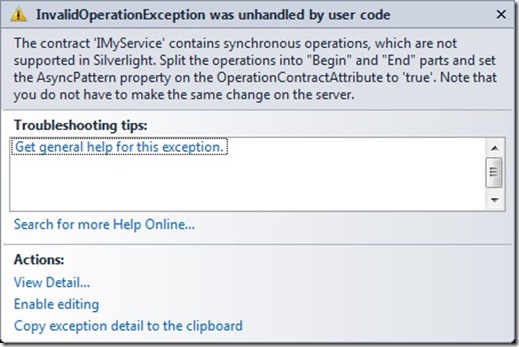
Now when I run this, I am getting the following error message.
Untitled4
Synchronous operation
It's a pretty clear error message, because synchronous operations are not supported in Silverlight. We should make everything asynchronous. So I am modifying my service contract as follows. Please note that here I am modifying the “IMyService” interface in my Silverlight application. I don’t have to change “IMyService” interface in MyWcfServiceApp.
    [ServiceContract]
    public interface IMyService
    {
        [OperationContract(AsyncPattern = true)]
        IAsyncResult BeginDoWork(string s, AsyncCallback callback, object state);

        string EndDoWork(IAsyncResult result);
    }
Now I am modifying MainPage.xaml as follows. I have added a textbox to show the return value from the WCF service and I am calling Dispatcher.BeginInvoke in the callback method.  This is necessary because we’re accessing the UI thread, omitting this will result in an invalid cross thread access exception.
    public partial class MainPage : UserControl
    {
        private IMyService _imyService;

        public MainPage()
        {
            InitializeComponent();
            Loaded += new RoutedEventHandler(MainPage_Loaded);
        }

        void MainPage_Loaded(object sender, RoutedEventArgs e)
        {
            Binding customBinding = new CustomBinding(
                new BinaryMessageEncodingBindingElement(),
                new HttpTransportBindingElement { MaxReceivedMessageSize = 2147483647 }
                );

            EndpointAddress address = new EndpointAddress("http://localhost:3289/MyService.svc");
            ChannelFactory<IMyService> clientChannel = new ChannelFactory<IMyService>(customBinding, address);
            if (clientChannel == null)
            {
                throw new Exception("Failed to create channel.");
            }
            _imyService = clientChannel.CreateChannel();
            IAsyncResult asyncResult = _imyService.BeginDoWork("Hello World", GetResult, _imyService);
        }

        // Implement the callback. 
        void GetResult(IAsyncResult asyncResult)
        {
            Deployment.Current.Dispatcher.BeginInvoke(delegate()
            {
                txtResult.Text = ((IMyService)asyncResult.AsyncState).EndDoWork(asyncResult);
            });
        }
    }
Now when I run this, again I will get the following error which is “Attempting to access a service in a cross-domain way”.

Untitled1
Attempting to access a service in a cross-domain way
For that I have to create 2 xml files which are ClientAccessPolicy.xml and crossdomain.xml andI am placing them inside my WCF Service application project.

ClientAccessPolicy.xml
<?xml version="1.0" encoding="utf-8"?>
<access-policy>
    <cross-domain-access>
        <policy>
            <allow-from http-request-headers="SOAPAction">
                <domain uri="*"/>
            </allow-from>
            <grant-to>
                <resource path="/" include-subpaths="true"/>
            </grant-to>
        </policy>
    </cross-domain-access>
</access-policy>
crossdomain.xml
<?xml version="1.0"?>

<!DOCTYPE cross-domain-policy SYSTEM "http://www.macromedia.com/xml/dtds/cross-domain-policy.dtd">
<cross-domain-policy>
  <allow-http-request-headers-from domain="*" headers="SOAPAction,Content-Type"/>
</cross-domain-policy>
That’s it. Now when I run this application, I am getting the result I have expected.

Untitled5
Result
Happy Coding,

Regards,
Jaliya